What is this
Since Nvidia Shield GameStream is going away soon if not already nvidia-shield-tv-sunset-gamestream. Awesome open source developers from (LizardByte, FrogTheFrog and Moonlight-stream) created a new way of utilizing Moonlight and Sunshine stack to stream game to your handheld devices within local network. To my surprise, it is easier to setup Sunshine and Moonlight than going through Nvidia shield route.
How it works
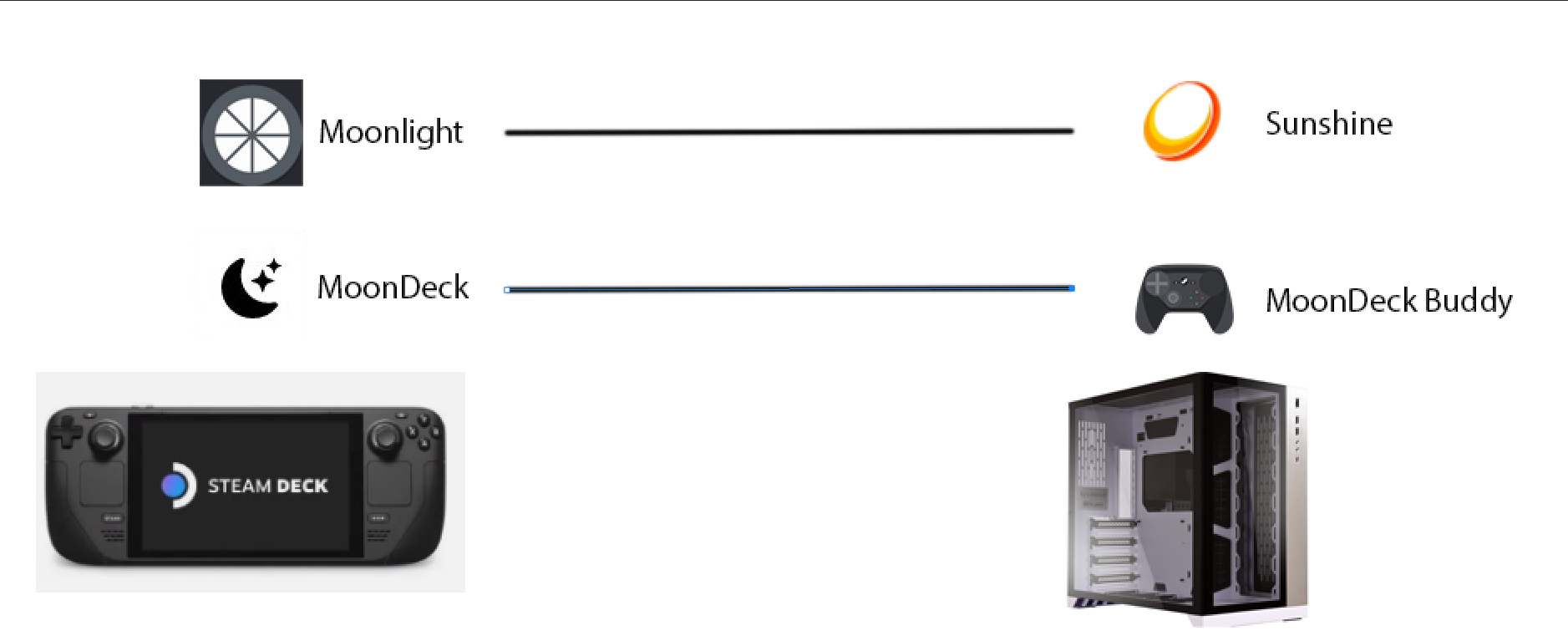
Your pc is hopefully, more powerful than the steamdeck. We will use that PC to do all the hard work (rendering) and stream the image to our SteamDeck. Our SteamDeck will display what PC rendered, and sending input signal back to PC. To my surprise, this process have very low latency and is very reliable (at least in local LAN environment).
- You still need Moonlight and Sunshine (Nvidia GameStream replacement) as the bare minimum. They are the core component transmitting the stream
- MoonDeck and Moondeck Buddy are helper shortcuts to launch game directly from SteamDeck library page, no need to manually add game to Moonlight dashboard
Setup
Sunshine (Nvidia Shield GameStream replacement) (PC)
This will be a service running on your powerful computer. A service (in the background) and provide streaming functionality when a Moonlight device trying to connect. It have a localhost website where you can configure many settings. In many way this is better than Nvidia Shield GameStream due to the following:
- It support all 3 major vendor of GPU, Nvidia, AMD, Intel
- Hostable on Windows, Linux, and MacOSX
Install
Setup for sunshine is the most difficult part compare to the rest of the tutorial but it is totally doable.
- Download latest Sunshine binary from Github: latest, I am on Windows and I will be downloading the Windows installer version. Portable avoid installing to your system registry. It is a preference.
- Launch installer and use default setting and finish installation process.
Setup
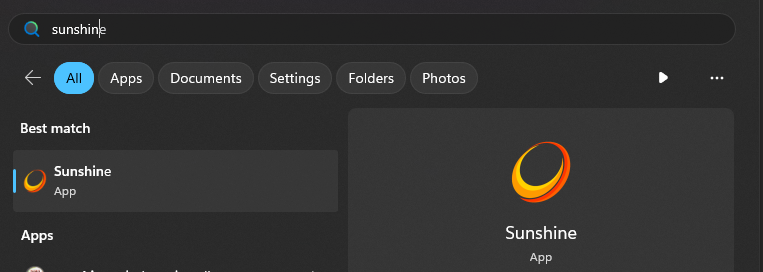
Now you should see a Sunshine icon on your bottom right hand tray, if you do not see the icon try launching from start menu.

-
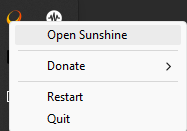
Single left click on Sunshine icon and click on Open Sunshine
-
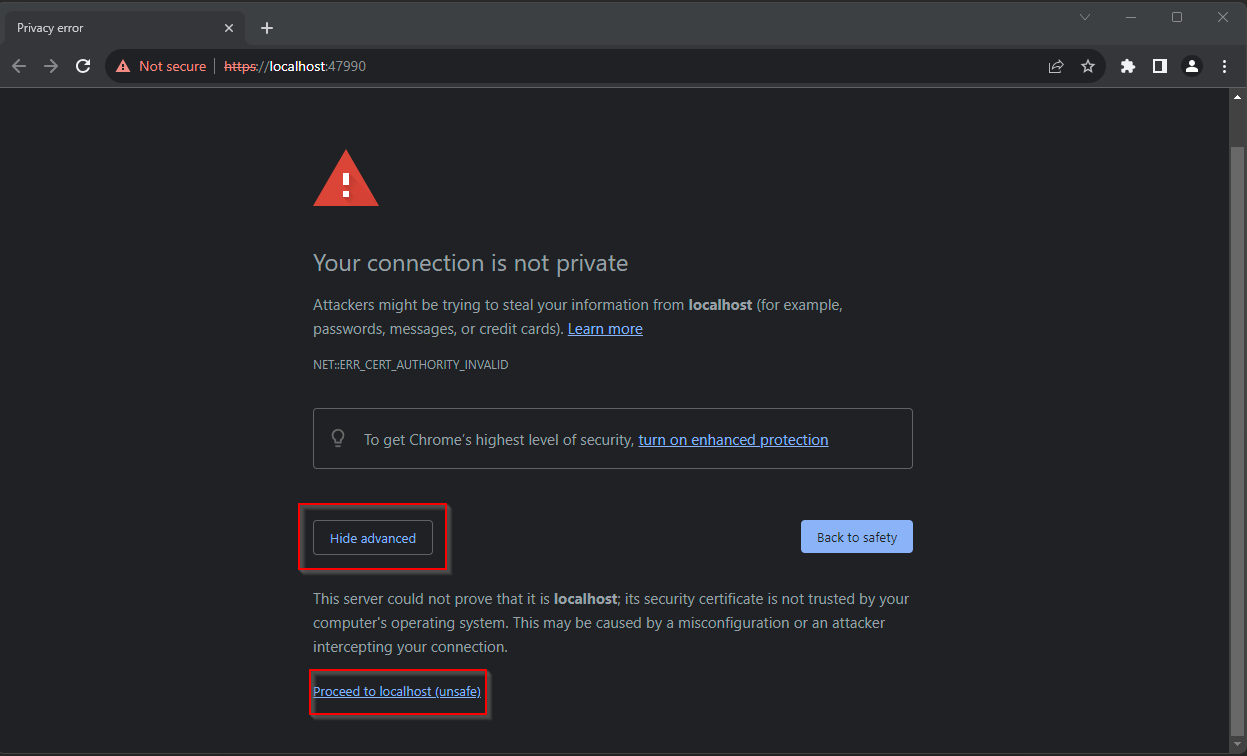
You will see an insecure warning, it is ok since this is only hosting on your local network, we can safely dismiss this warning.
-
You will be prompt for an admin username and password, this is the credential you will use to make change to Sunshine.
-
After setup is complete, page will refresh and ask for your credential you just set.
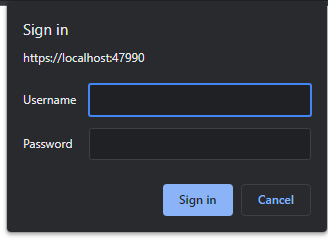
-
This is the home page for Sunshine, you wont be needing to see this dashboard after everything is setup.
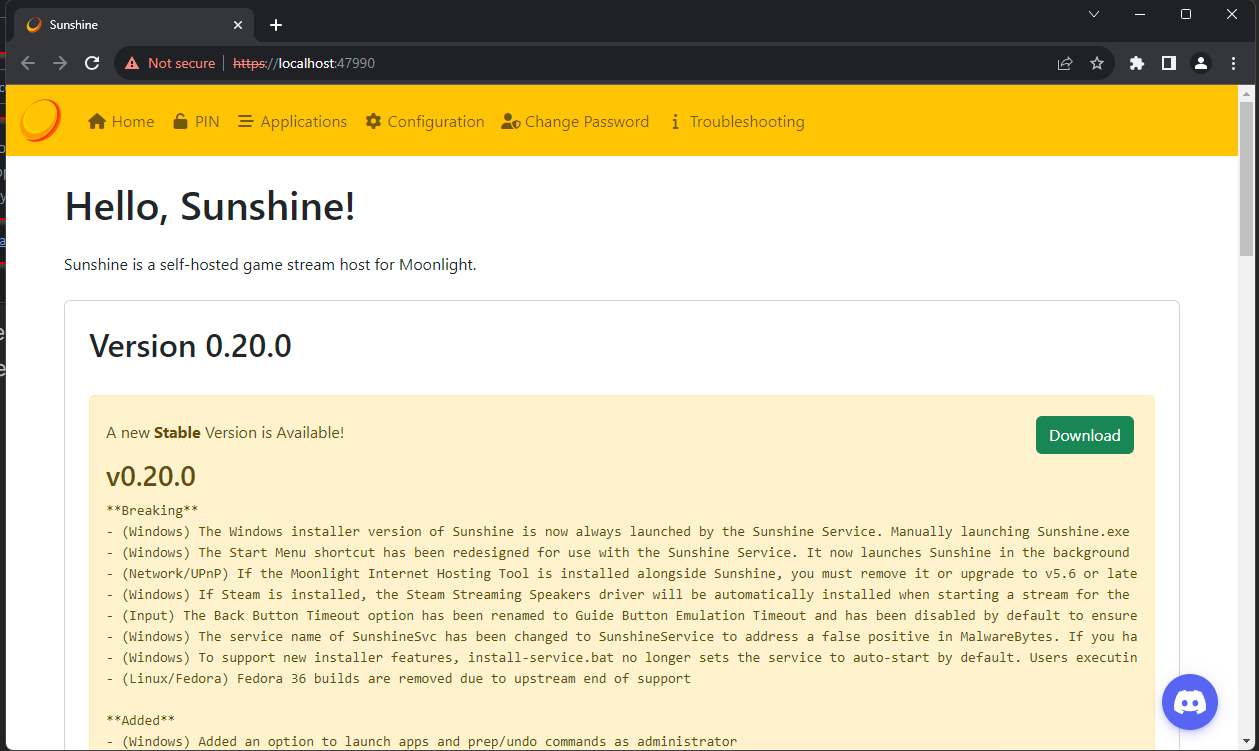
Minimize this page we will comeback to Sunshine shortly
MoonDeck and MoonDeck Buddy
MoonDeck Buddy(PC) is a companion app to MoonDeck(SteamDeck) . MoonDeck is a shortcut launcher (on Steamdeck) for launching a Moonlight session without going through Moonlight dashboard and click on game then start. It is an icon on Steamdeck game page and you click on icon to start game
Decky Loader and MoonDeck (SteamDeck)
- You can install Decky Loader by following the installation guide on their Github decky-loader
- If install successfully, when you press … on your SteamDeck at the bottom there should be this Decky Loader icon
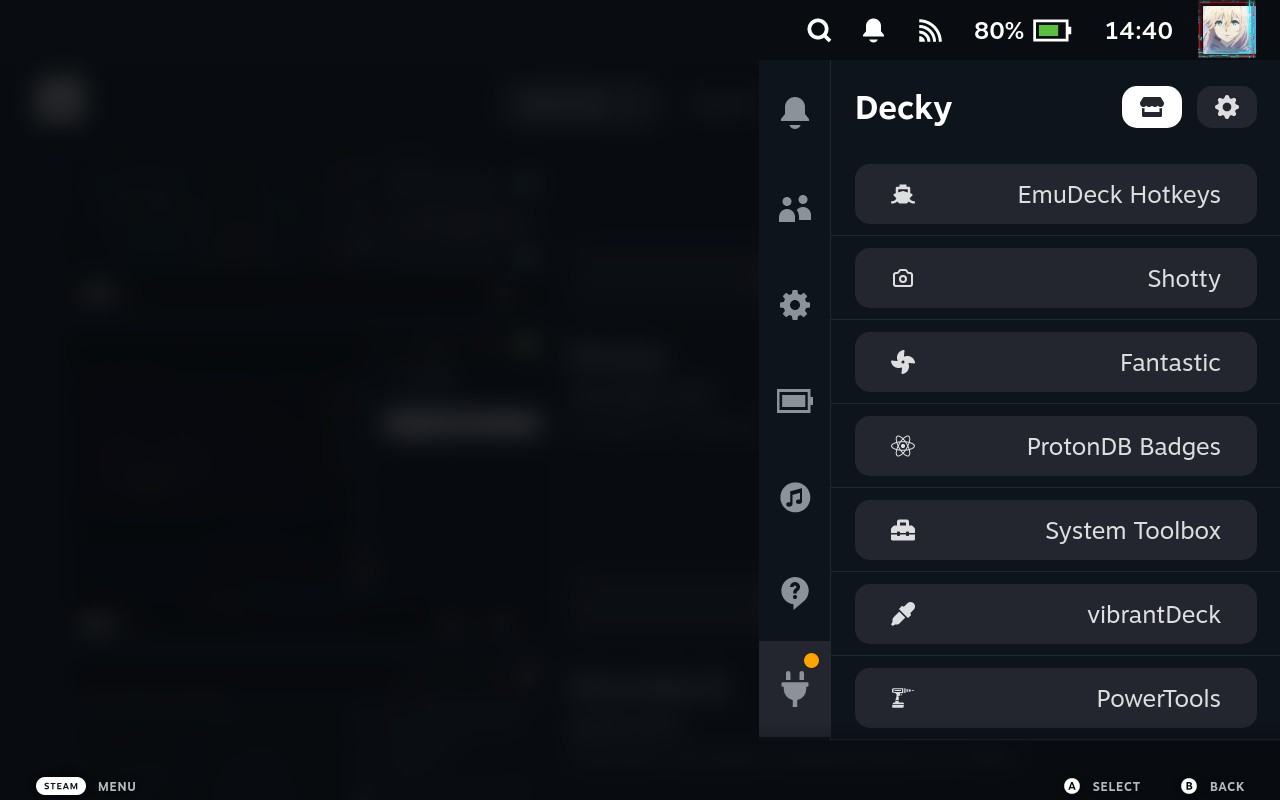
- From there you can go to the Store/Market and install MoonDeck plugin
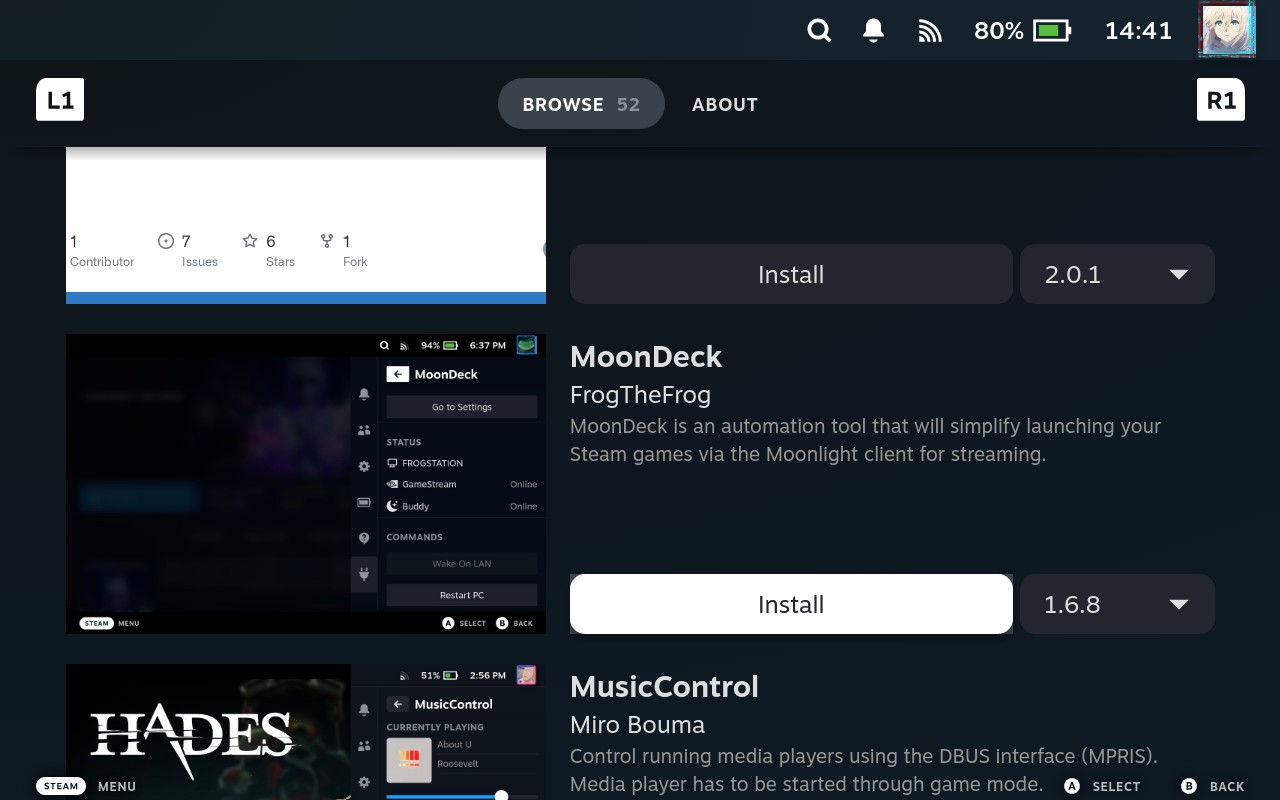
- After installing MoonDeck plugin, this icon should show up on all your Steam games.
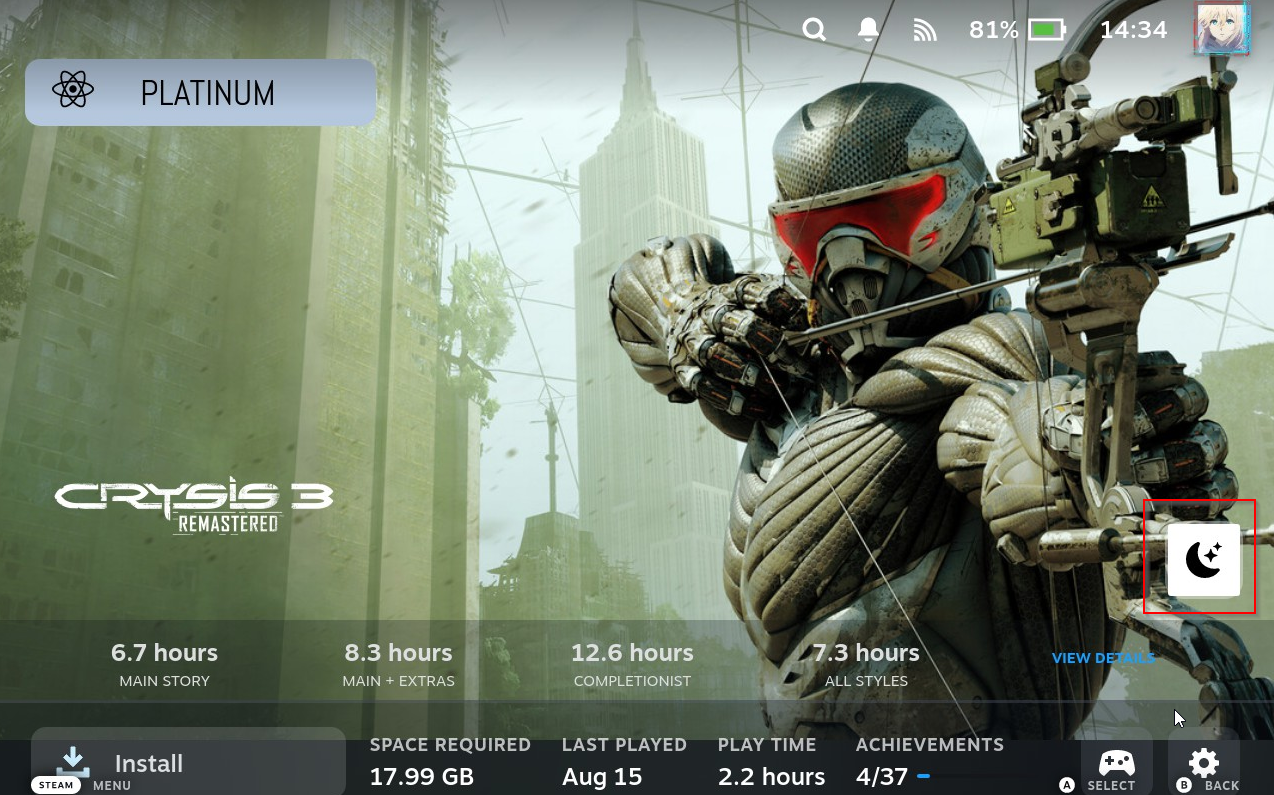
- This means your MoonDeck plugin is installed successfully, you will need to configure the receiver application on the pc side
MoonDeck Buddy (PC)
-
Install MoonDeck Buddy on releases with default parameters
-
Then run the MoonDeck Buddy from start menu:

-
Firewall prompt, just click Allow Access
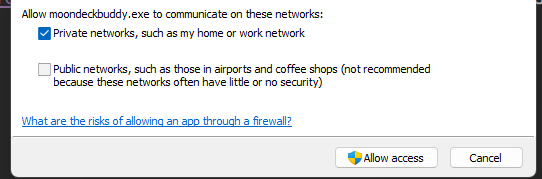
-
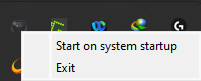
You might want to start this application on startup, right click then select start on system startup
Moonlight(SteamDeck)
Install
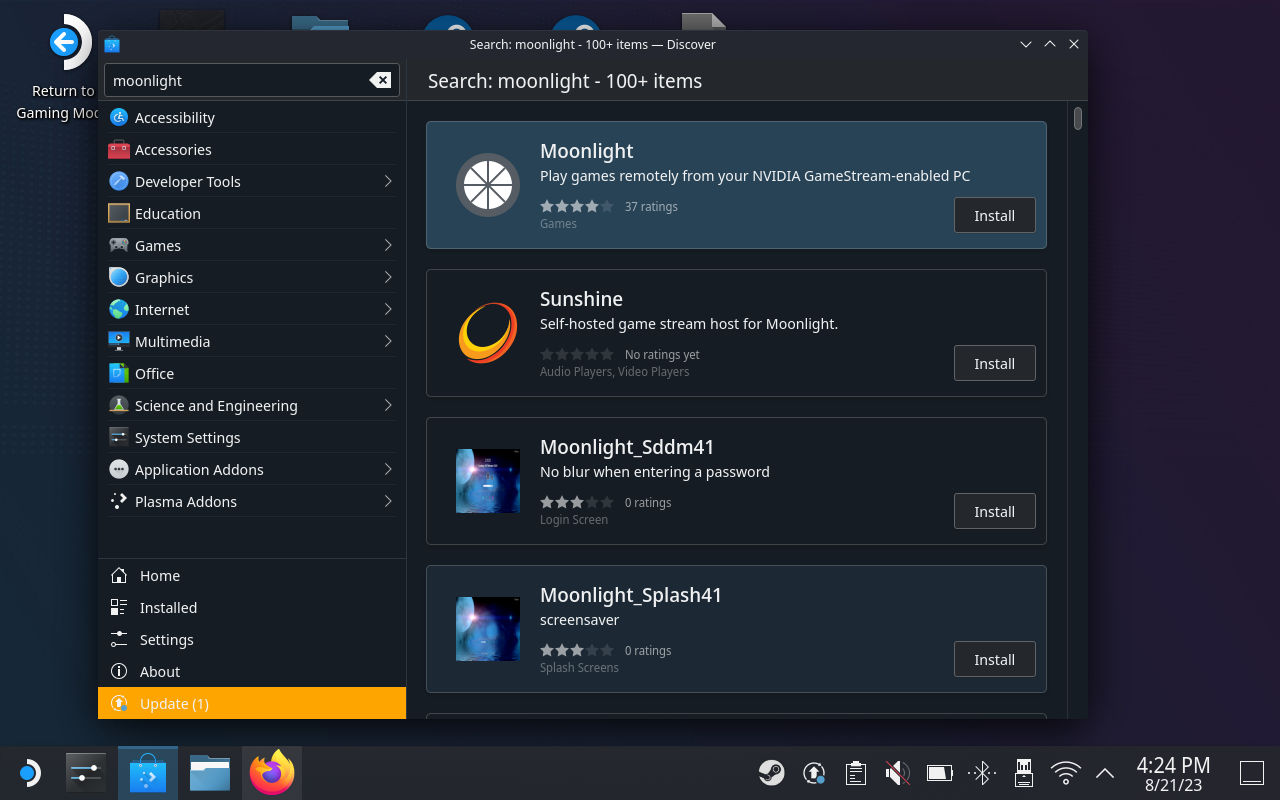
You will also need to install Moonlight in Steamdeck Desktop mode in order to pair with Sunshine. MoonDeck and MoonDeck Buddy are only making Moonlight startup process easier, at its core, Moonlight is the one doing streaming.
- Switch to desktop mode
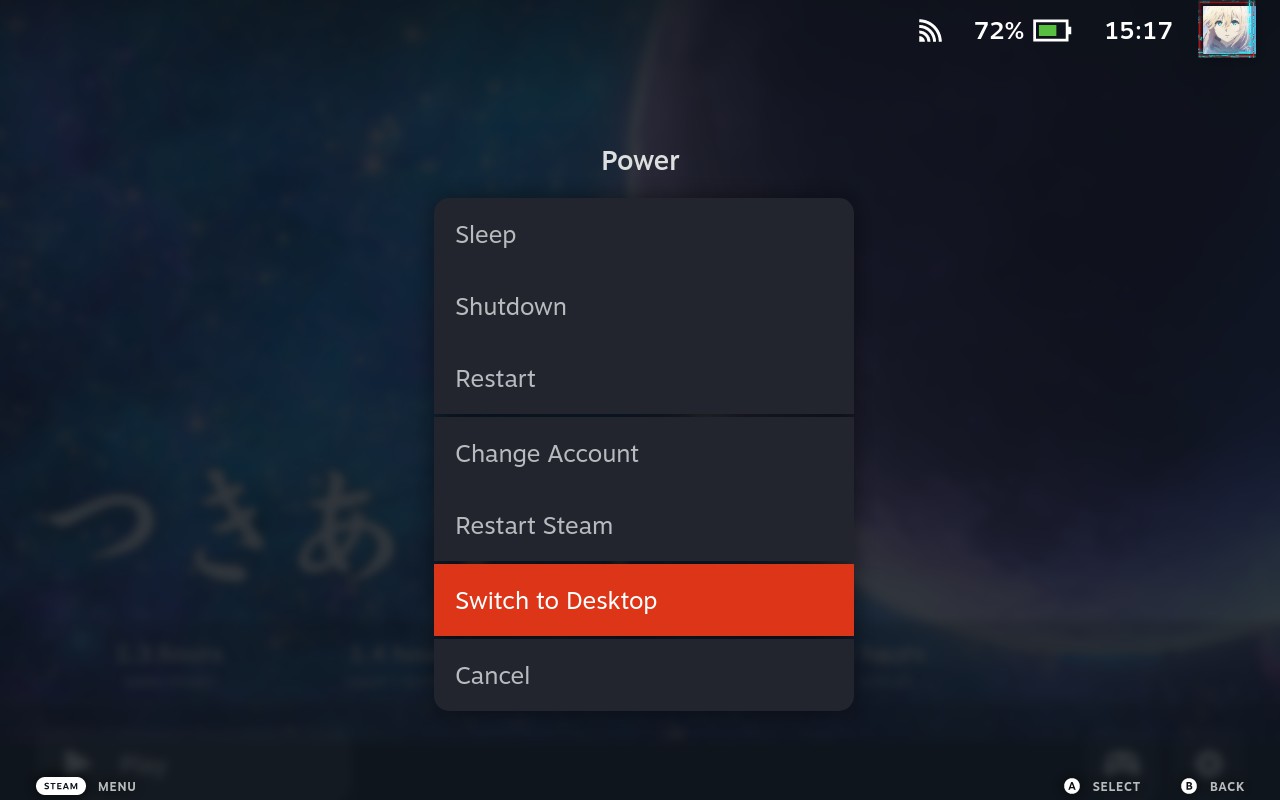
- Go to Discover store and install Moonlight
Configure
Basic
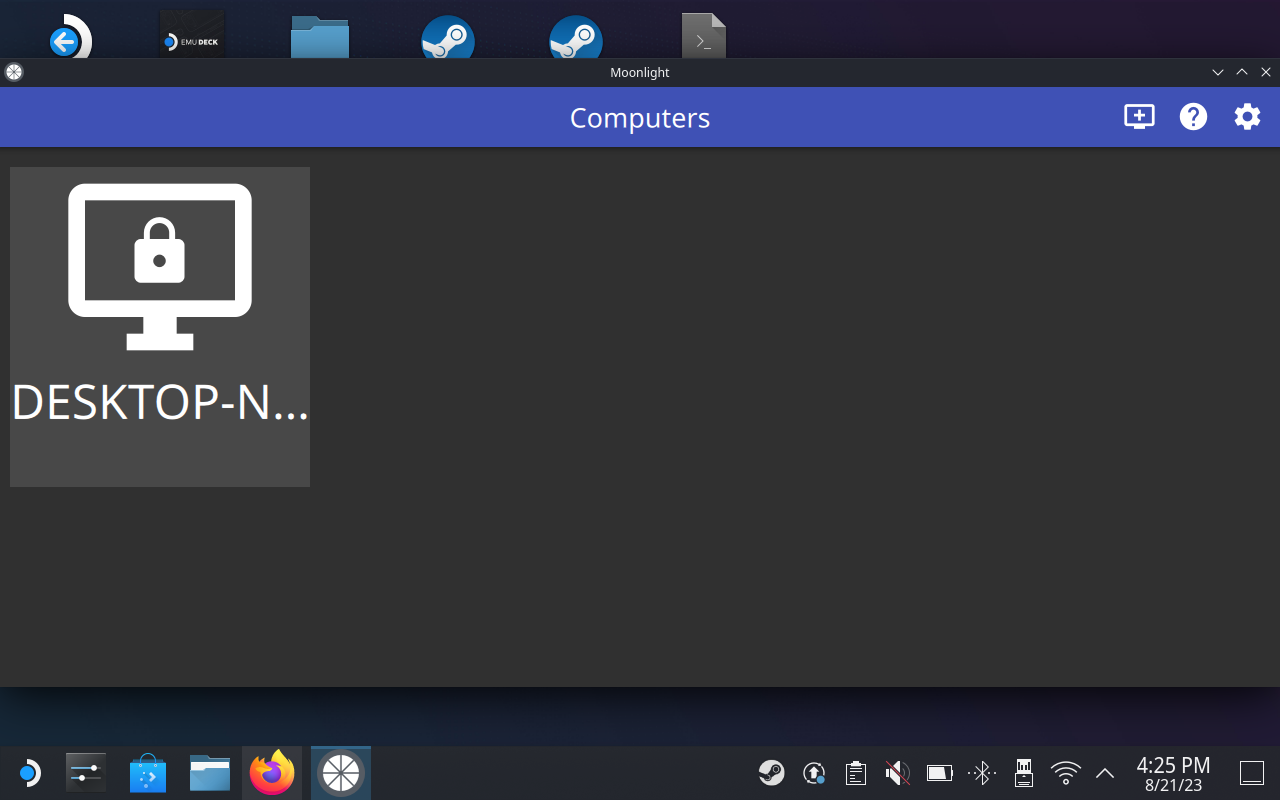
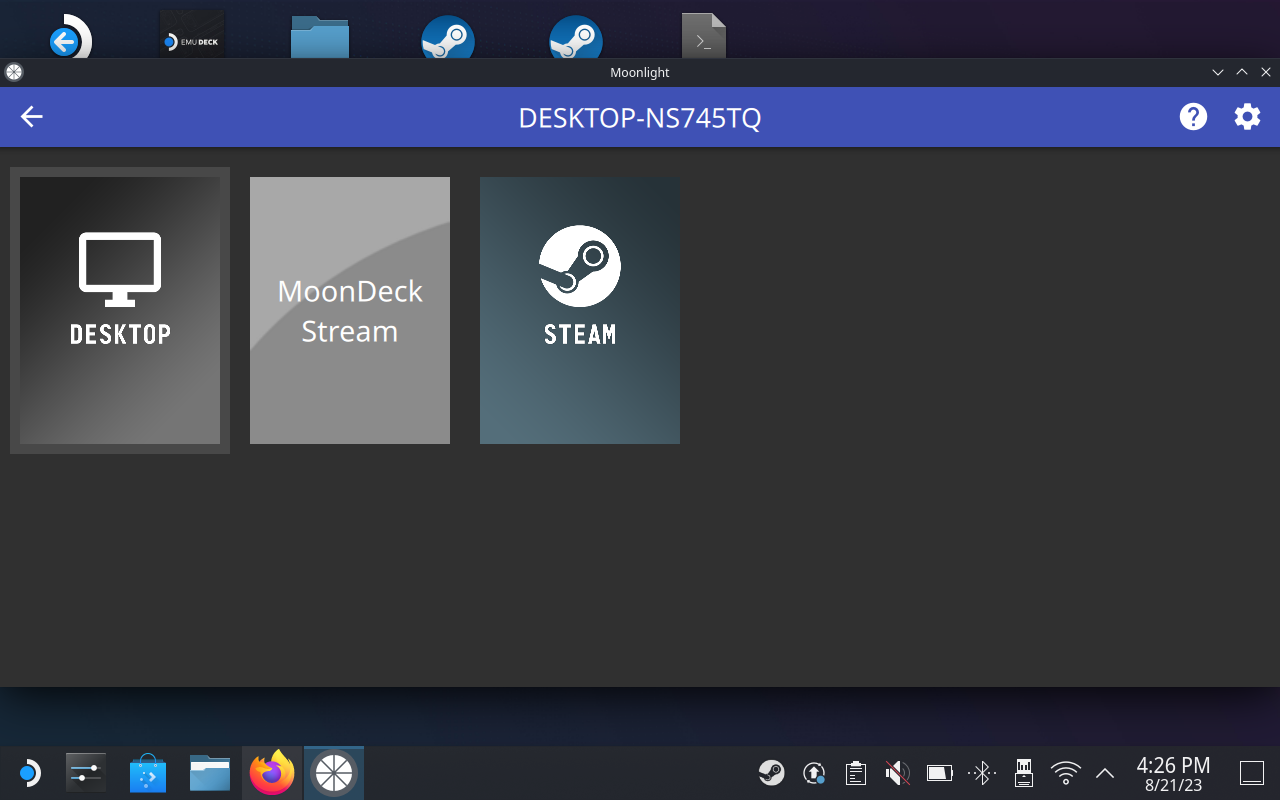
- Launch Moonlight and click on the Desktop name where you have Sunshine running
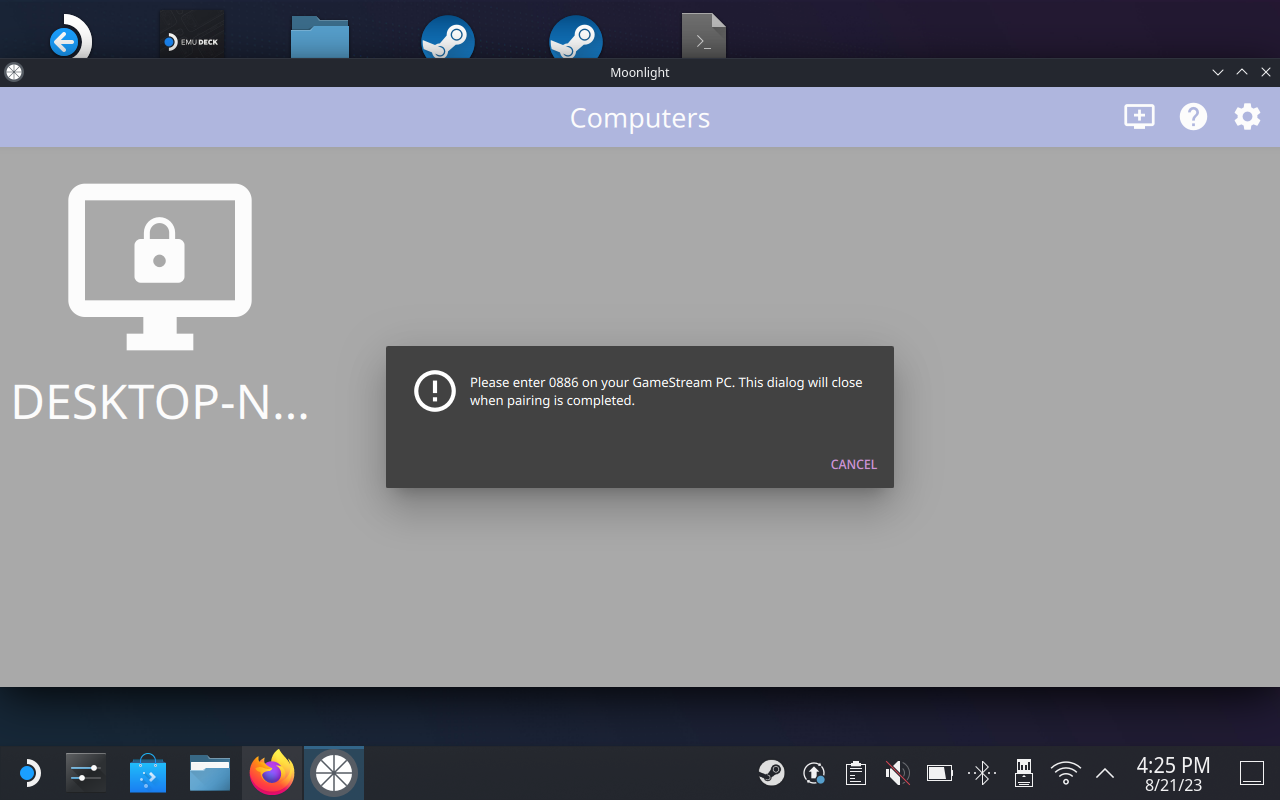
- It will ask you to enter PIN on Sunshine interface
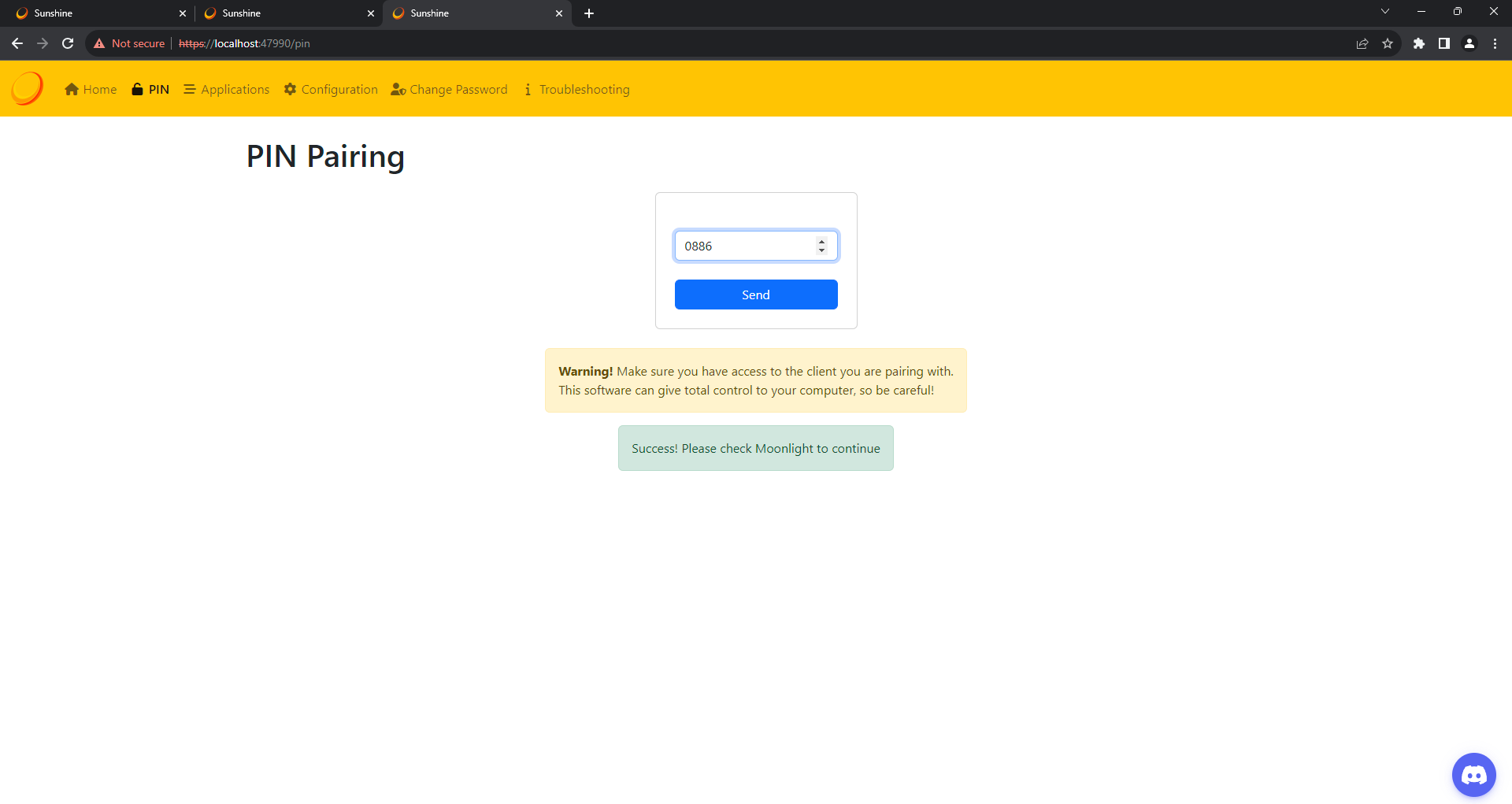
- Go to your PC and type the 4-digit PIN onto Sunshine PIN tab
- If you click on your computer name now and see some application showing up, you are good to go, dont worry if you dont have MoonDeckStream right now, we will set that up very soon
Quit Moonlight
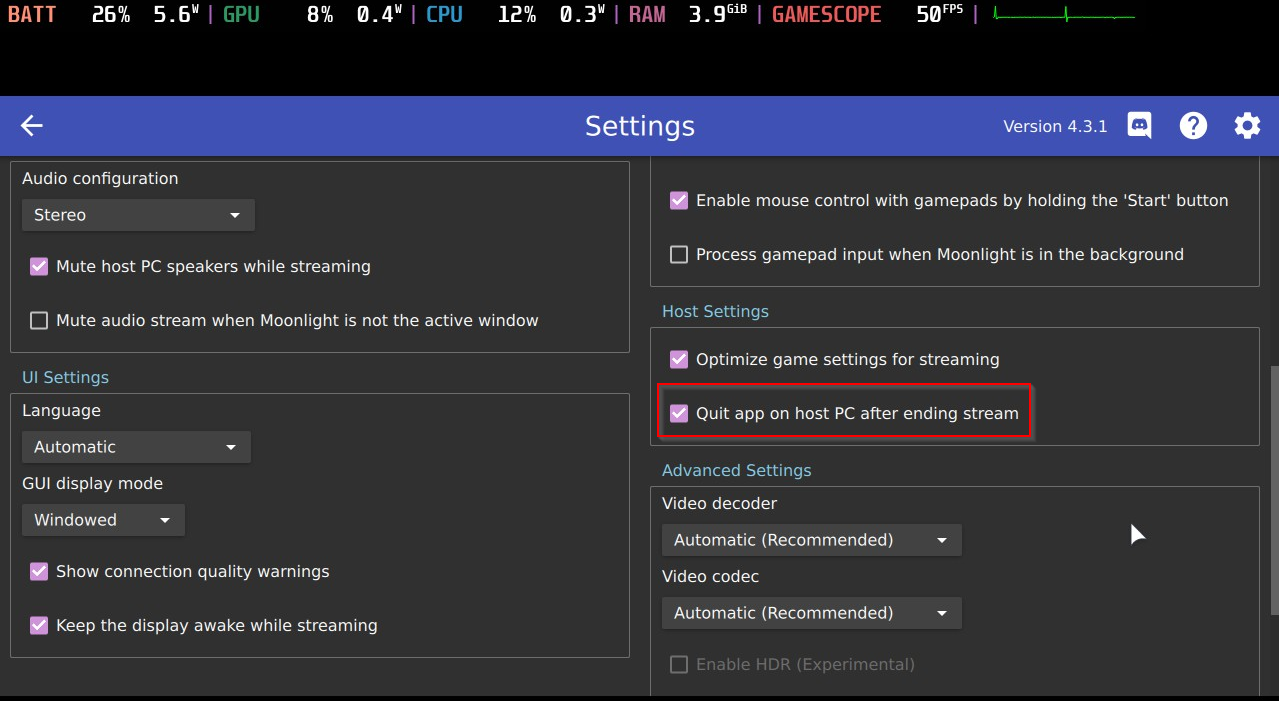
It is worth noting that quitting a game by pressing Steam key - Exit by default will only exit Moonlight application, stream is on pause but MoonDeckStream process still alive. To terminate the stream completely and potentially quit the game on host machine do the following.
- In Moonlight, go to settings
- Check Quit app on host PC after ending stream.
This setting will kill MoonDeckStream process. I have mix result if the game will quit when this option is checked. Crysis3 does not quit even with this checkbox. But Ryujinx does quit.
Add as Non Steam Game
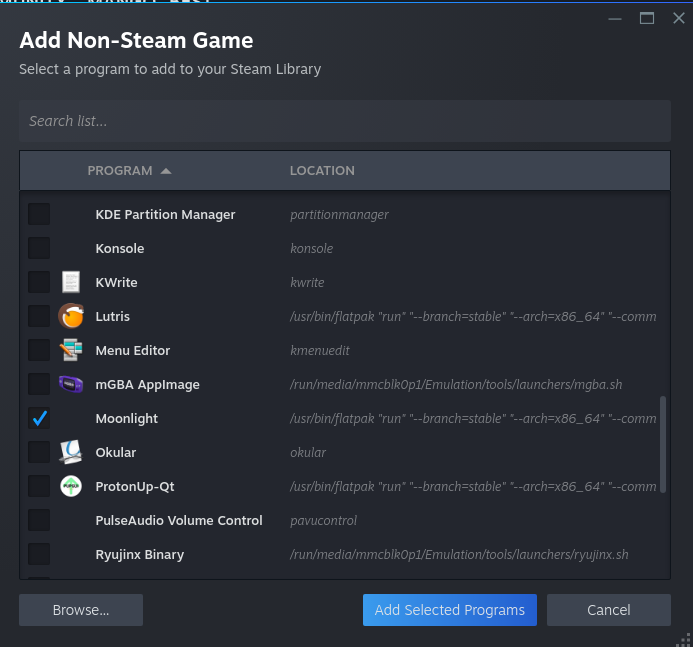
- Add Moonlight as Non Steam game is also helpful if you need to start Moonlight for any reason (like launching an emulator located on your PC) without going to SteamDeck desktop mode
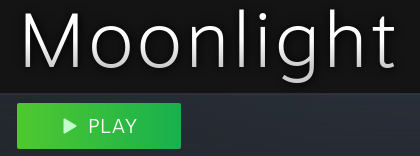
- You should see Moonlight as an item in Library
- Return to SteamOS
Sunshine (cont.) (PC)
Adding application
- Per documentation, we need to add MoonDeck Buddy on Sunshine to get MoonDeck working. It is also a good idea to add other major launcher you will use into the application tab, I added Yuzu and Ryujinx.
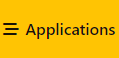
- Click on Applications - Add New and enter the following information:
MoonDeckStream:
- Application Name: MoonDeckStream
- Command: PATH TO YOUR MOONDECK BUDDY
- For me, it is: C:\Users\USERNAME\AppData\Local\Programs\MoonDeckBuddy\bin\MoonDeckStream.exe
- Save
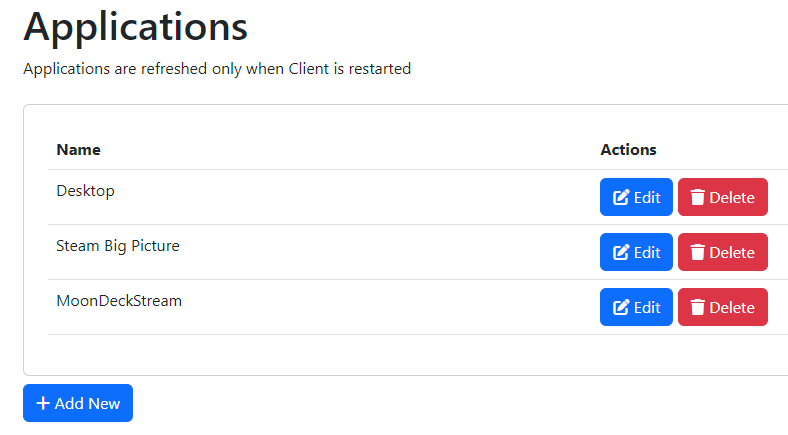
- Your application should have 3 items now, 2 are default and 1 you just add
Yuzu/Ryujinx:
It will be exactly the same, just replace the Application name with Yuzu/Ryujinx, and set the path to the .exe file
MoonDeck Buddy (SteamDeck)
Pairing
Lastly we will need to pair MoonDeck with MoonDeck Buddy. This is to make the shortcut start game on desktop pc
- Go to MoonDeck plugin on Decky Loader
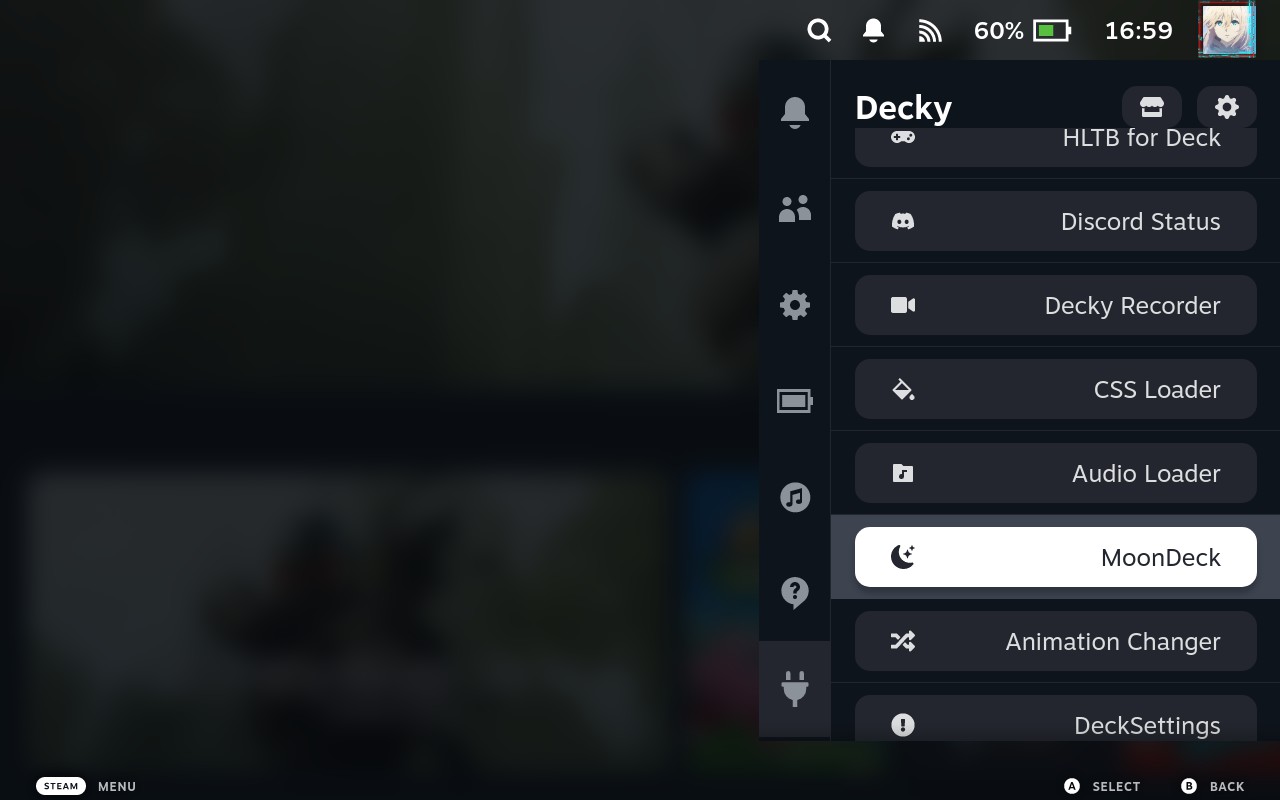
- Go to Settings
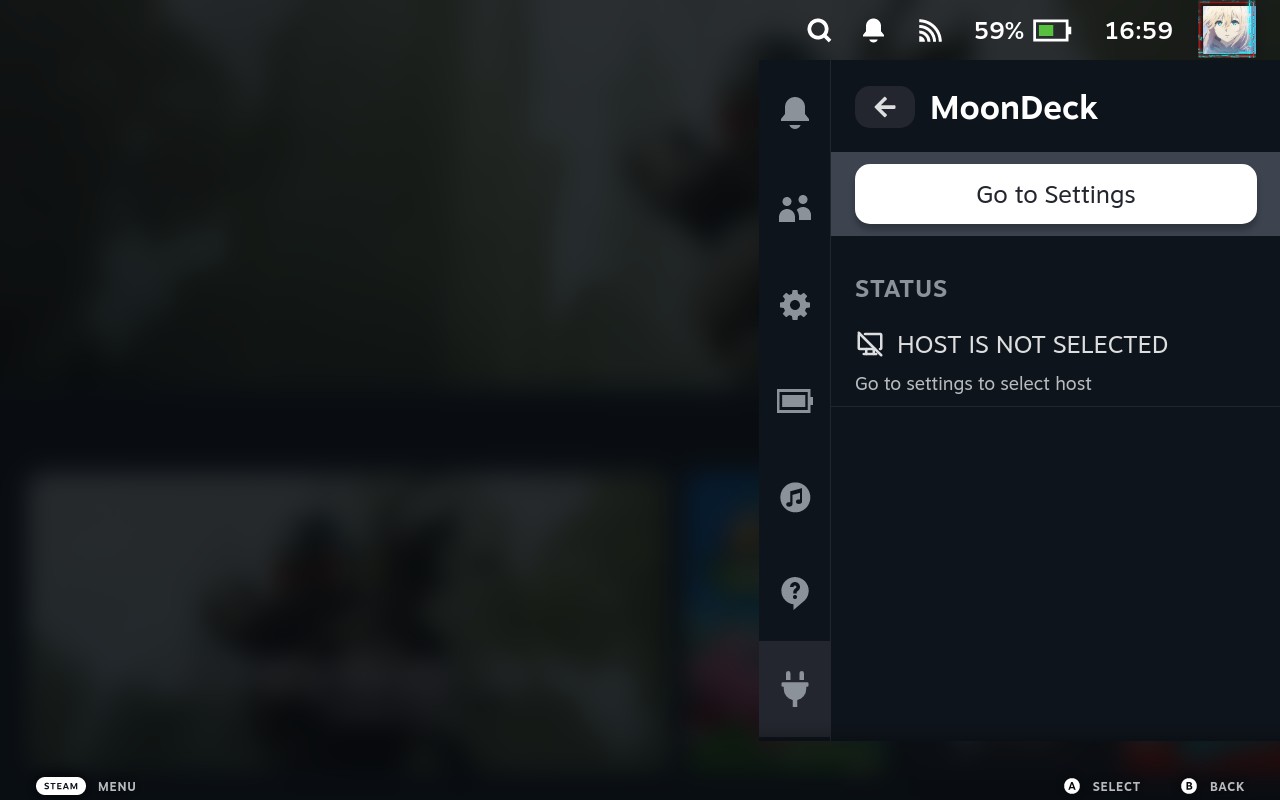
- Click on Scan and choose the same PC you setup for Moonlight
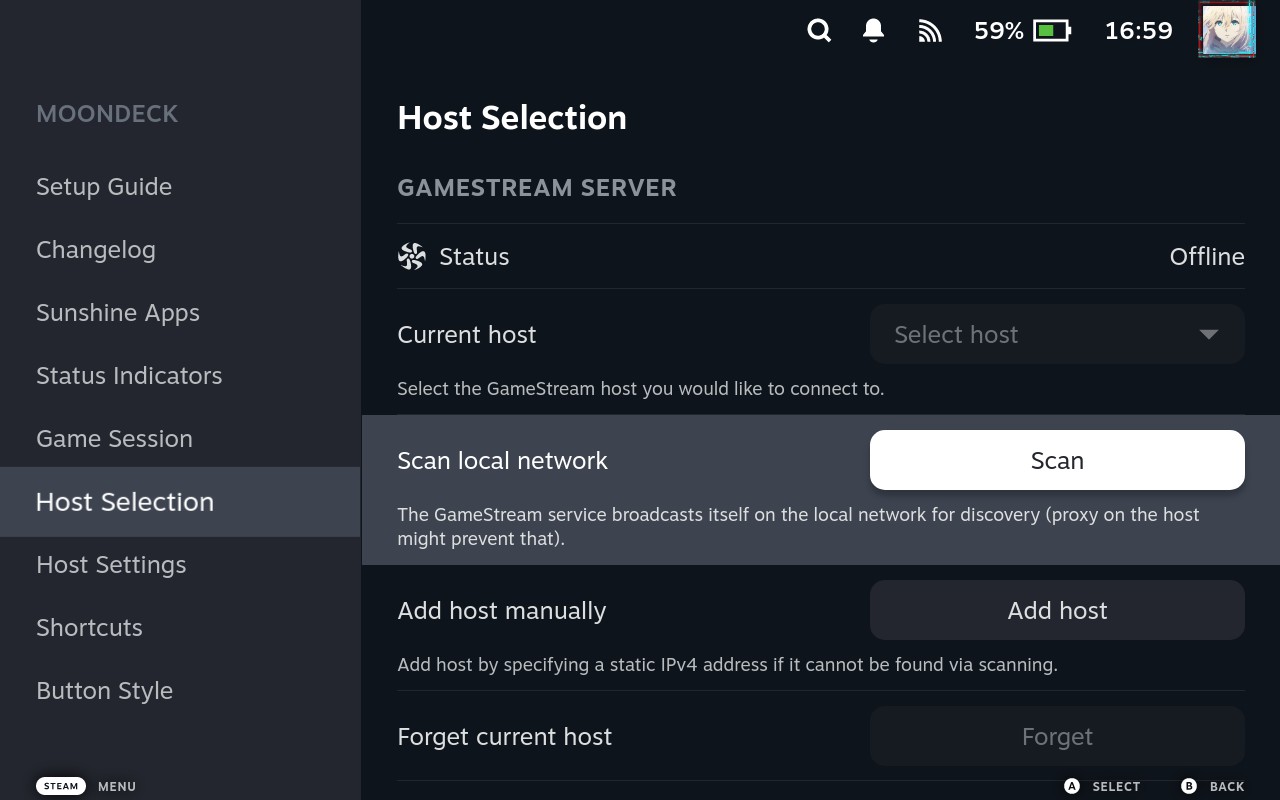
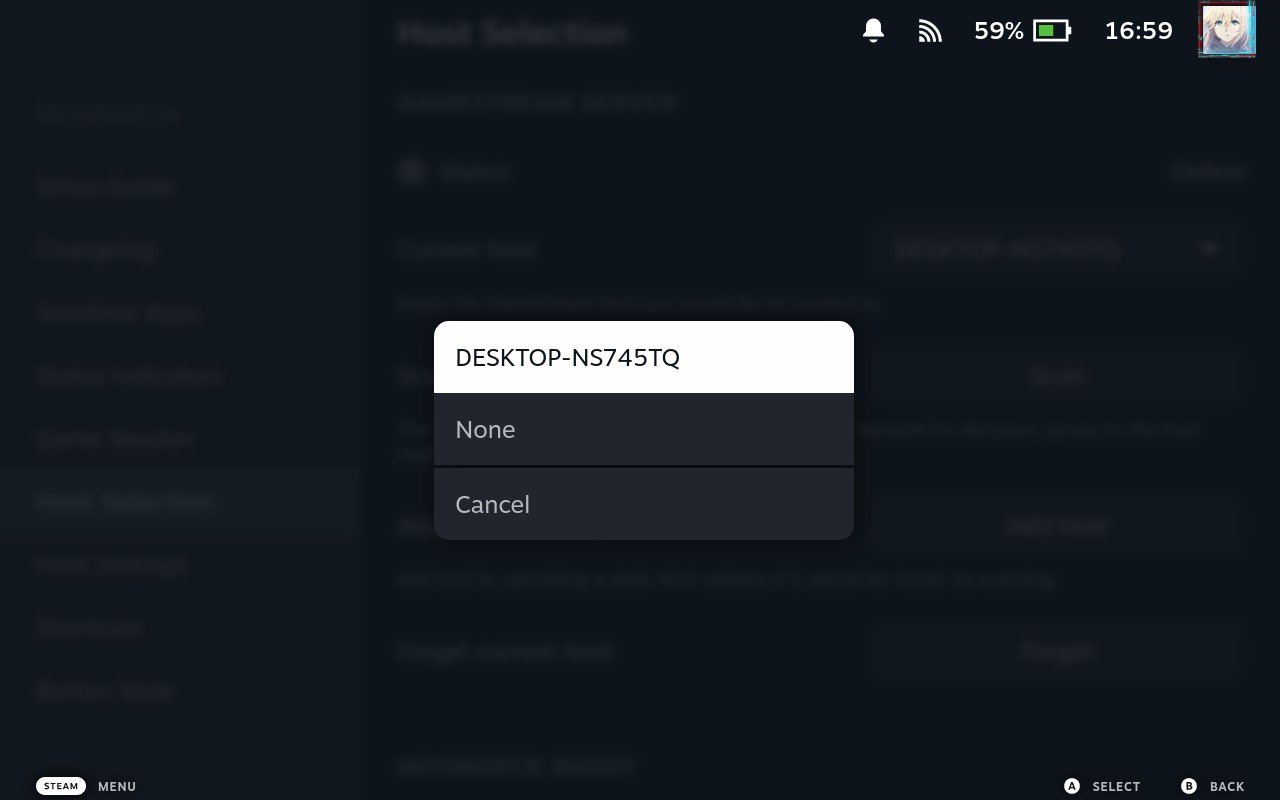
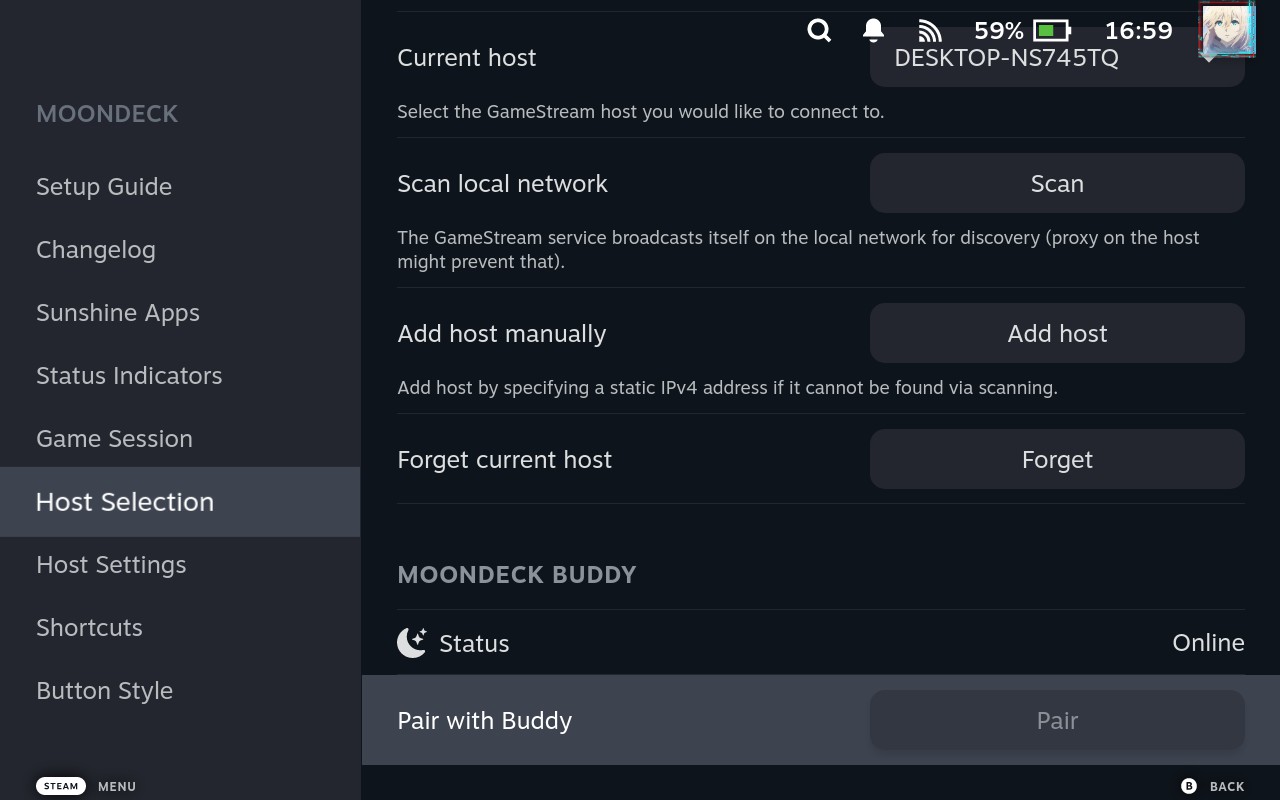
- If it is your first time setting up MoonDeck Buddy, click on Pair at the very bottom. Another 4-digit PIN will show and you will need to enter into MoonDeck Buddy prompt, NOTE INTO MOONDECK BUDDY PROMPT, NOT SUNSHINE (MoonDeck Buddy prompt should show up automatically on your PC once you click on Pair)
Add Moonlight application to SteamOS
If you want all the application show up on SteamOS as Non Steam game, you can do so by selecting Sync all Sunshine’s apps via Buddy
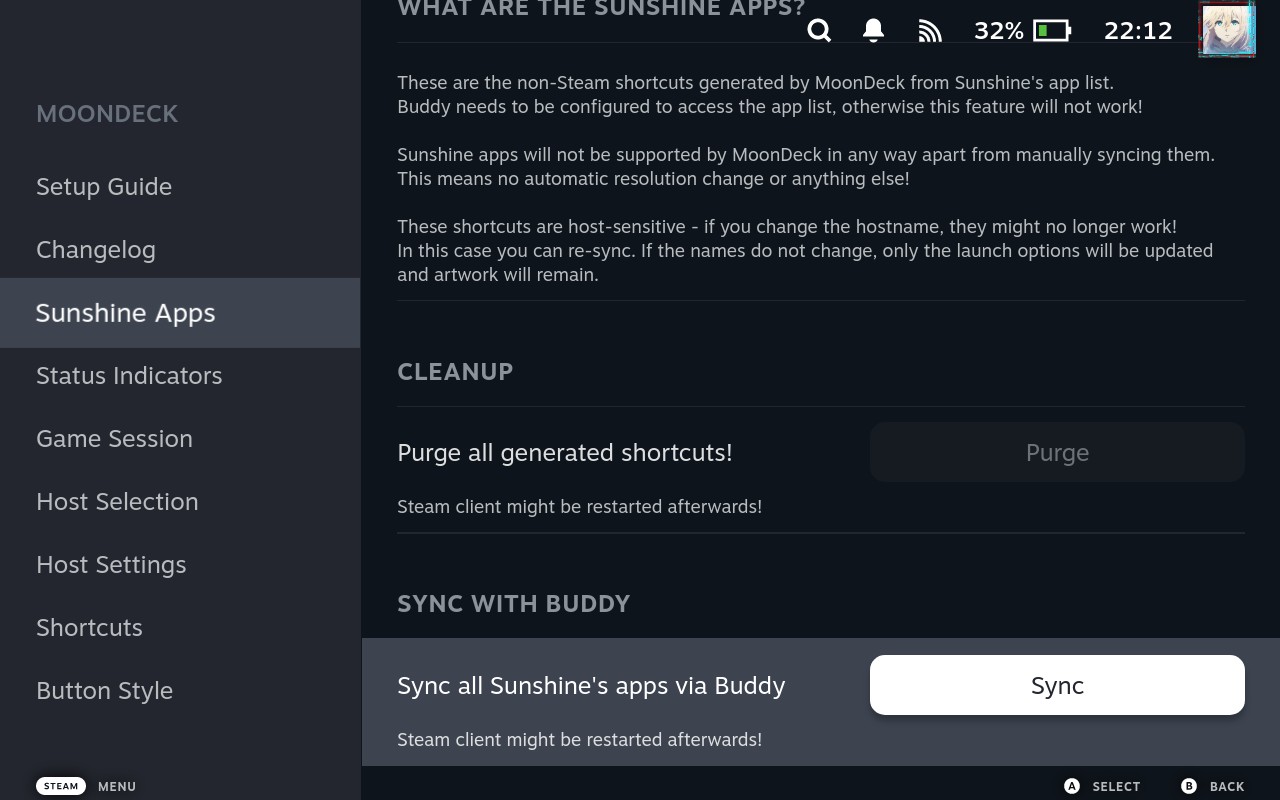
This sync will be based on items you defined in Application tab, for me I have 3 items and they are the following.
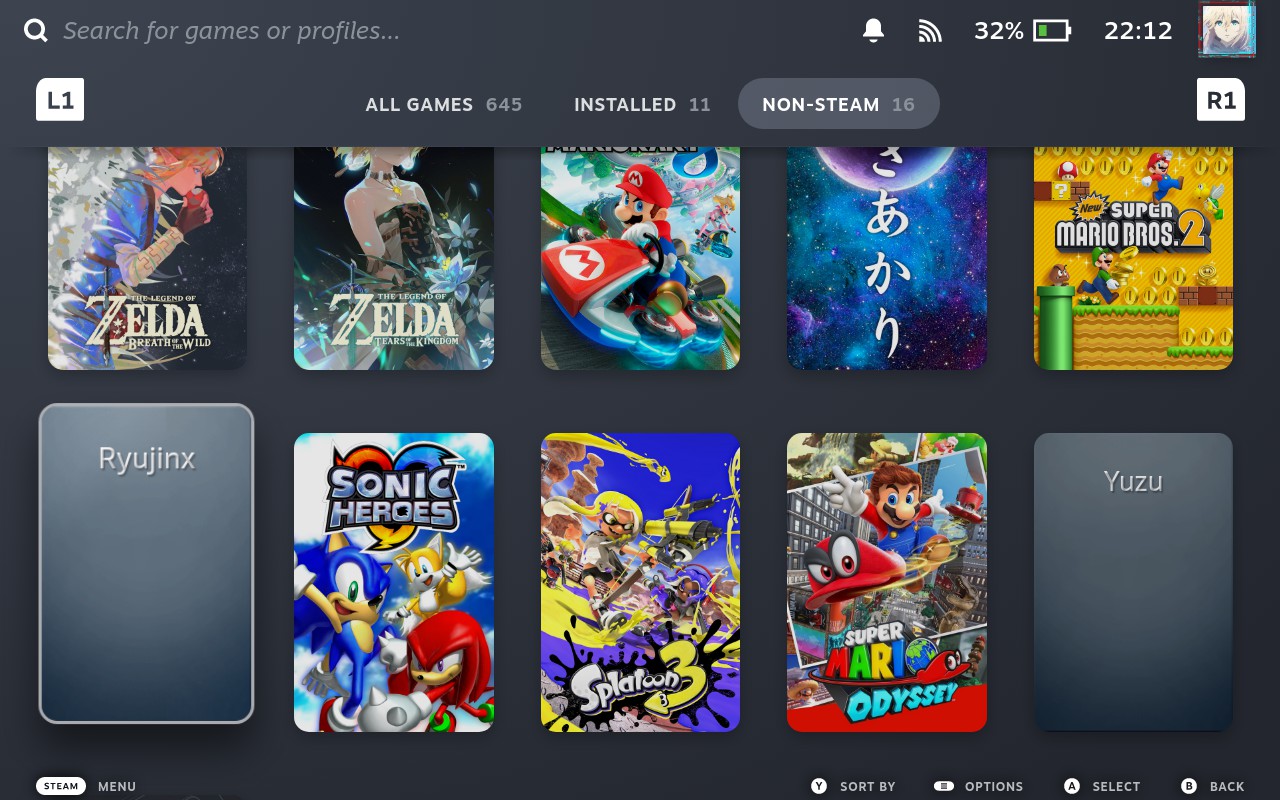
Note: Since MoonDeckStream is using via MoonDeck shortcut, Sync will omit this shortcut and only give us 2 icons (Ryujinx and Yuzu)
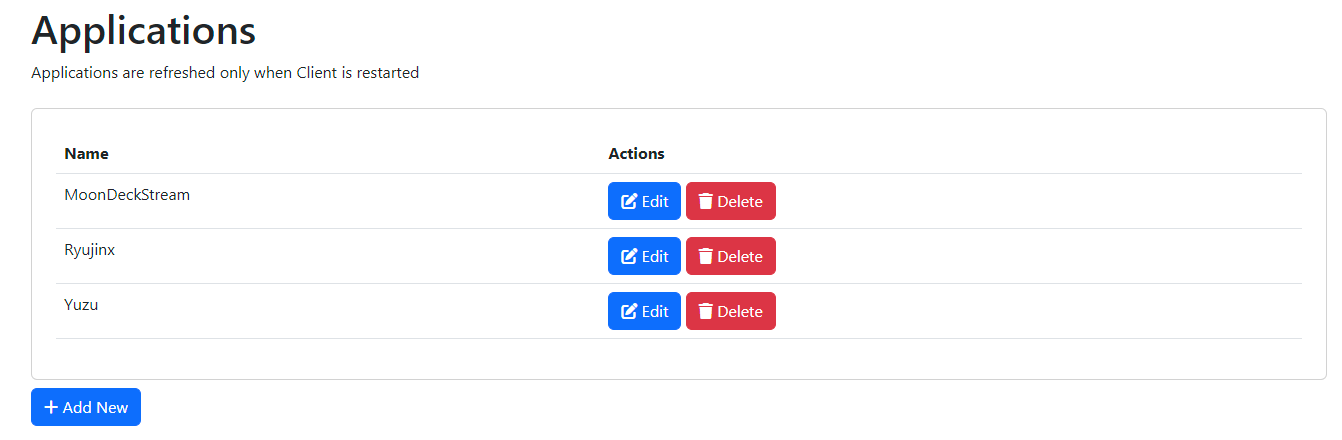
Note: these two icons (Ryujin and Yuzu) are for streaming from Sunshine PC, it should not be confused with Yuzu and Ryujinx on the SteamDeck.
I have independent emulated games in this collection due to Steam Rom Manager releases.
Note2: Steam Rom Manager will only parse ROM on SteamDeck.
SteamGridDB
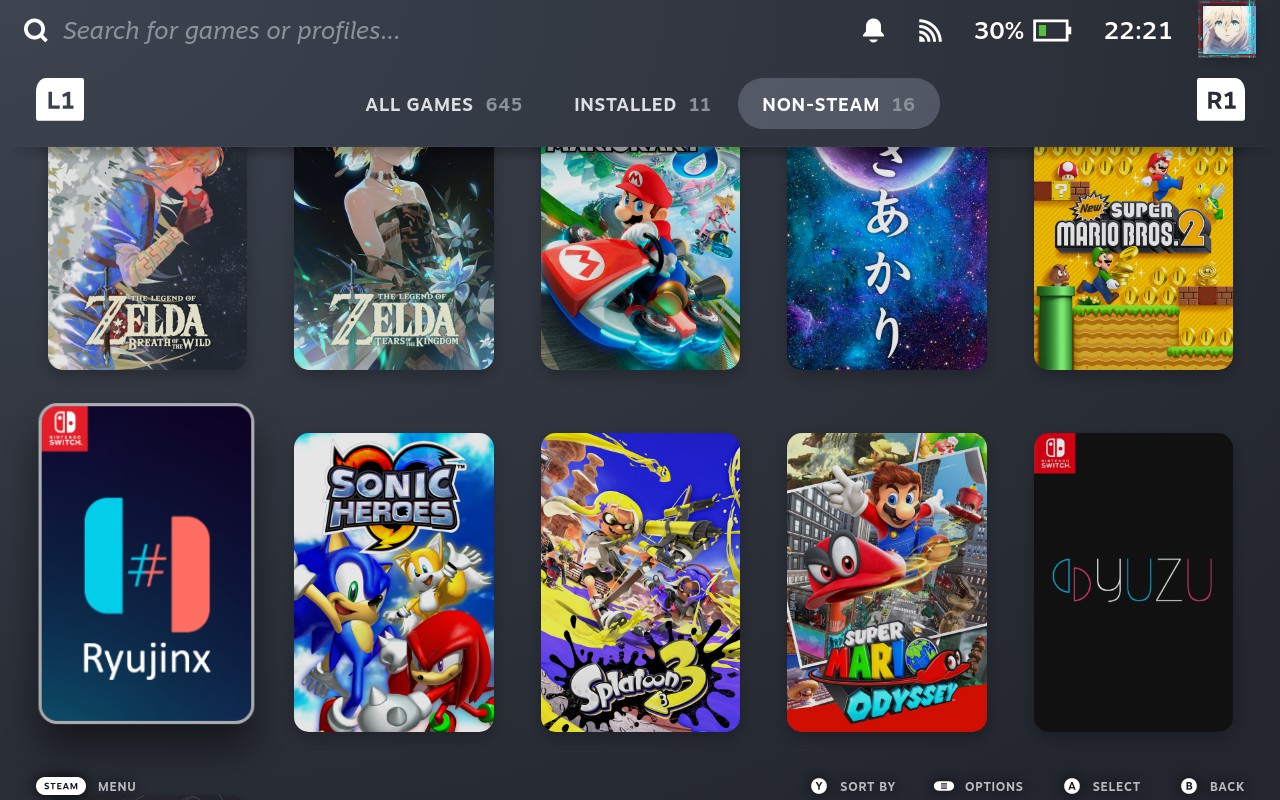
I will assign Moonlight Ryujinx and Yuzu new icons so they are distinguishable. I am doing this with SteamGridDB plugin. It is in the Decky Loader market place.
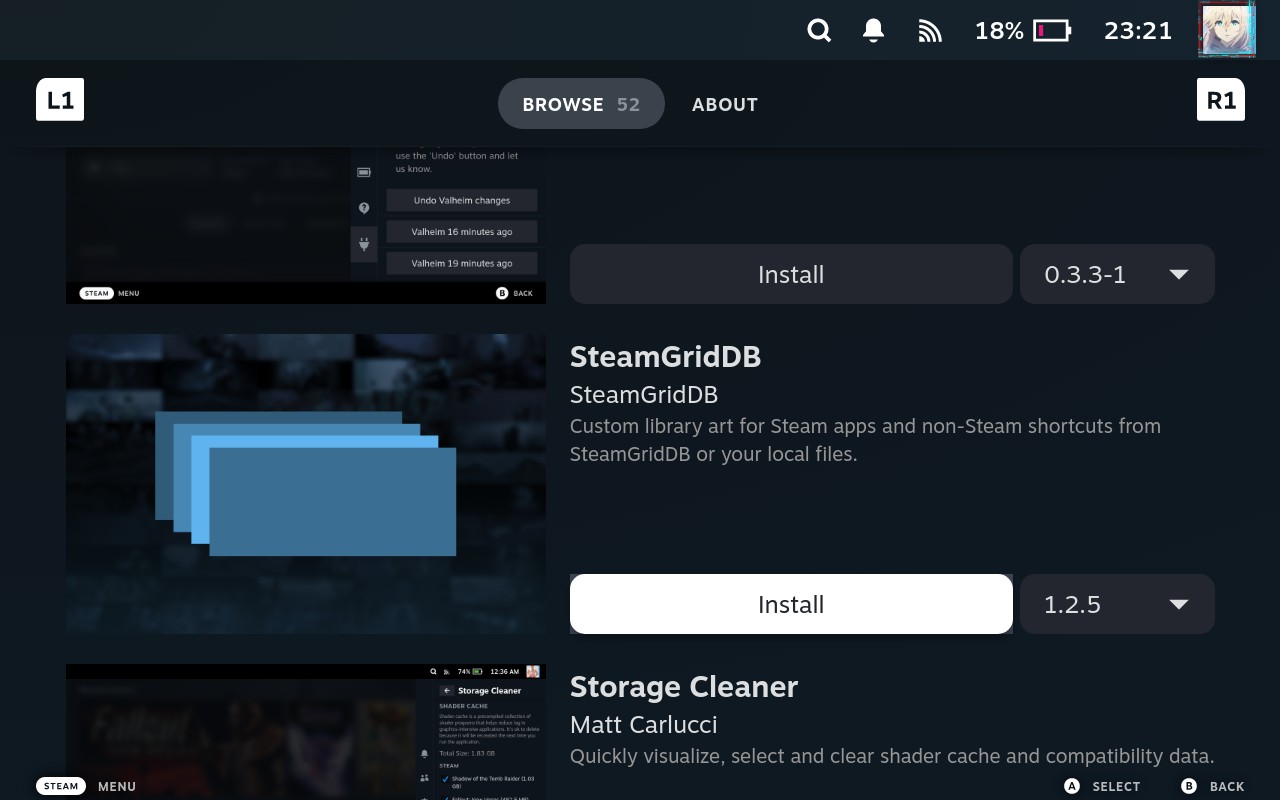
This plugin can assign icons/hero image/capsule artworks to non steam games. The end result is the following
Running a game
You have complete all the setup and its time to launch a game.
- Click on the MoonDeck icon on a game
- If should show it is starting MoonDeckStream (which we just add as a Sunshine application)
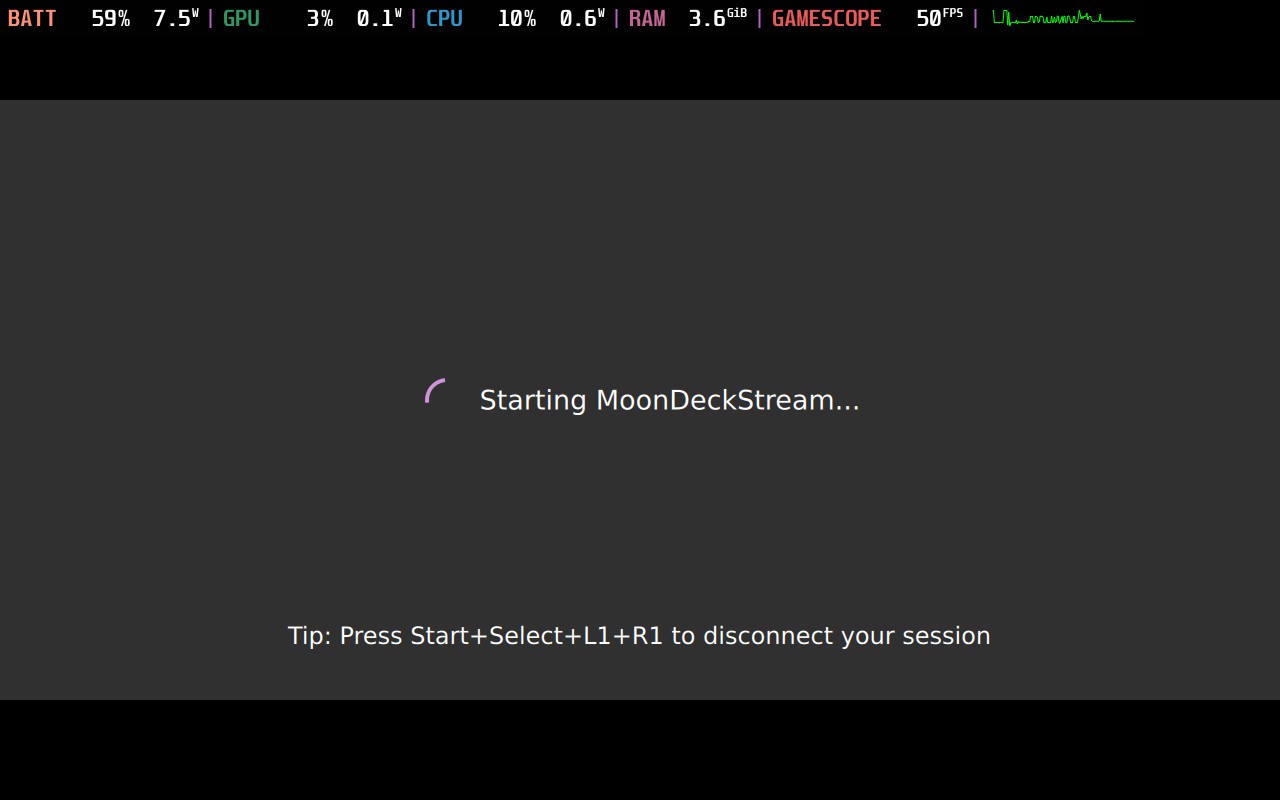
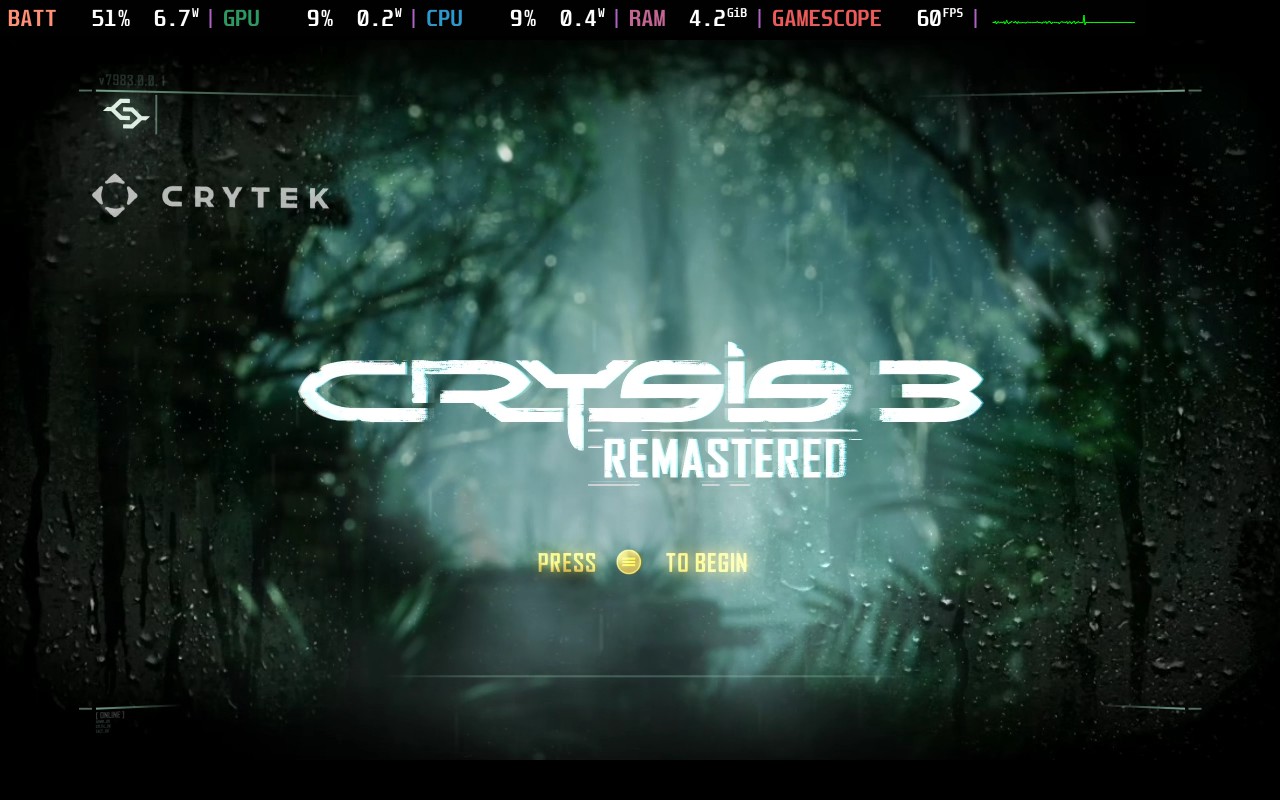
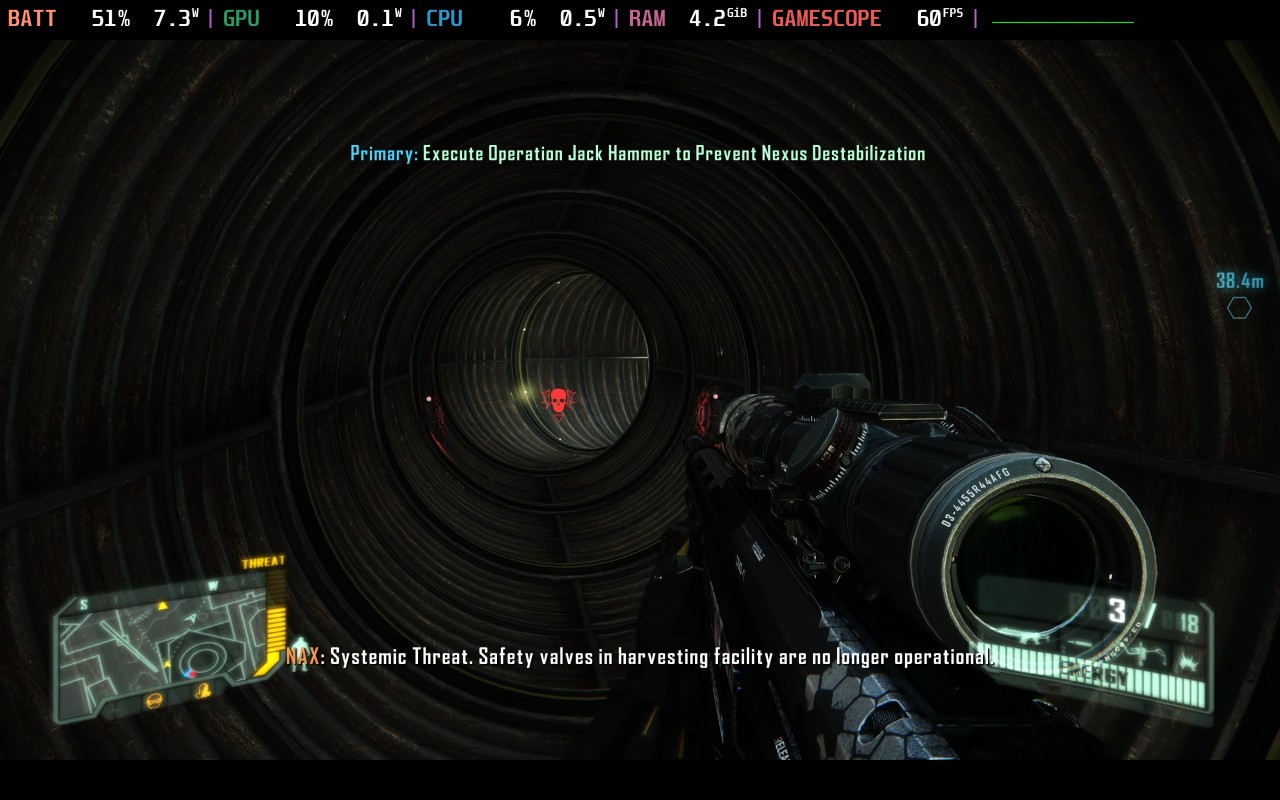
- Now you have butter smooth 60FPS on most your games (of course, this depends on how powerful your PC is, but on a 800P screen, it most likely have better FPS than your computer’s 1080P 1440P or 4K)
Switch HDR
If your monitor support HDR and you have it on by default, most likely you will get over exposure when streaming to SteamDeck
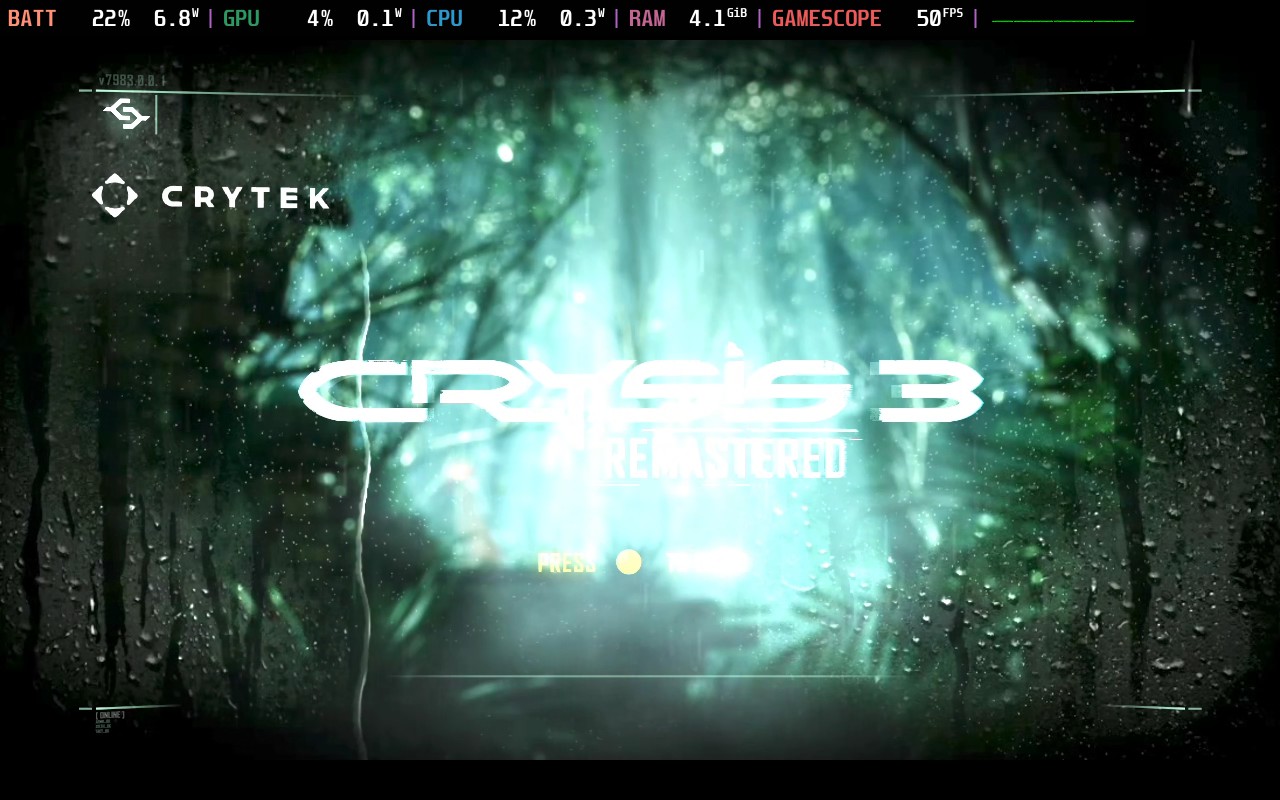
To solve this issue, samglit got a solution that I happy to share remote_streaming_for_moonlight_sunshine_moondeck
He suggest a program called AutoActions, which will monitor a process creation/termination and perform action accordingly. Auto action Github: 1.9.19
Profile
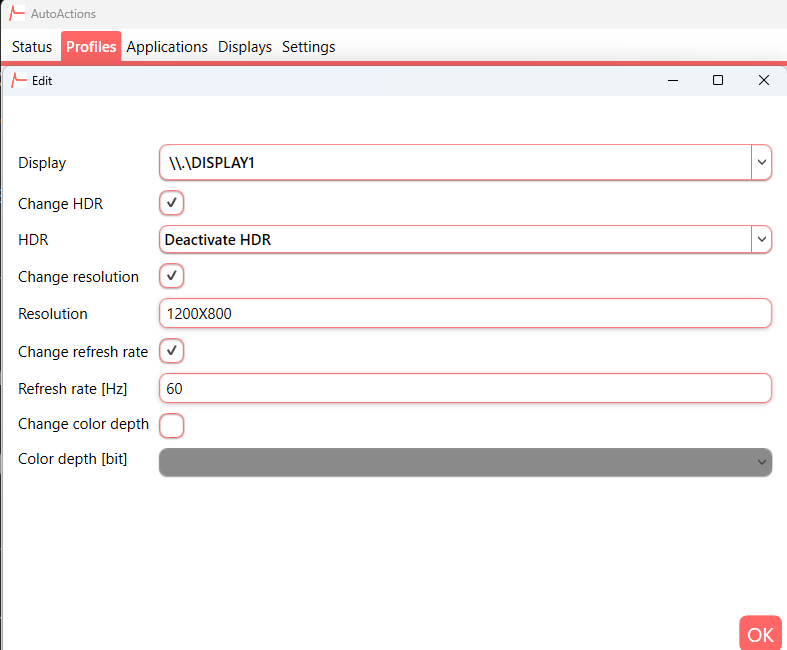
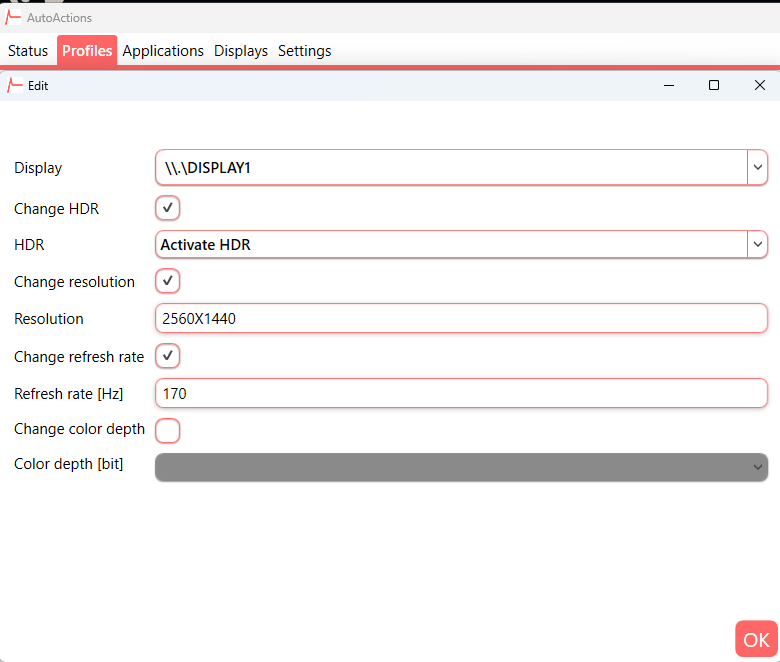
In profile I added 2 profiles
-
When MoonDeckStream process is detected, turn off HDR, set Refresh Rate to 60 and set Resolution to SteamDeck native 800P.
-
Revert to my own setting once MoonDeckStream process is terminated
Hook
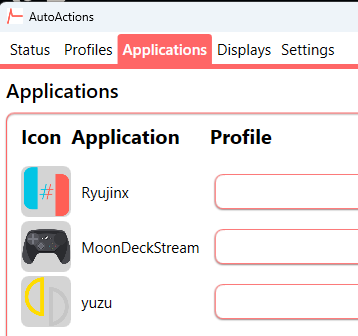
Now I only have to hook this profile to process I wish to monitor. Now when I use Moonlight to start any of the 3 process, the hook will trigger accordingly
Disclaimer
The content provided in this tutorial is intended for informational purposes only. It is not intended to be a definitive guide, professional advice, or a guarantee of any outcomes. The methods, techniques, and instructions outlined in this tutorial may involve technical procedures that could potentially impact your machine or system.
It is important to note that every computer environment is unique, and the steps outlined in this tutorial may not be suitable for all situations or configurations. The author of this tutorial does not assume any responsibility for any potential consequences that may arise from implementing the instructions or recommendations presented herein.
Before attempting any actions described in this tutorial, it is strongly recommended that you fully understand the potential implications of those actions on your system. If you are uncertain about any steps or techniques, it is advisable to seek professional assistance or conduct thorough research before proceeding.
By using this tutorial as a reference, you acknowledge that the author is not responsible for any damages, losses, or disruptions that may occur as a result of following the information provided. Your use of this tutorial is entirely at your own risk, and you agree to take full responsibility for any outcomes that may arise from your actions.
Remember that technology environments are complex and constantly evolving, and changes made to your system based on the information in this tutorial could have unintended consequences. Always exercise caution, perform backups, and consider seeking expert advice when in doubt.