Install MPV
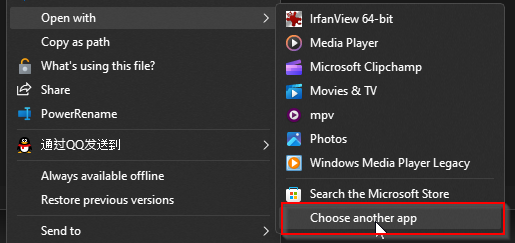
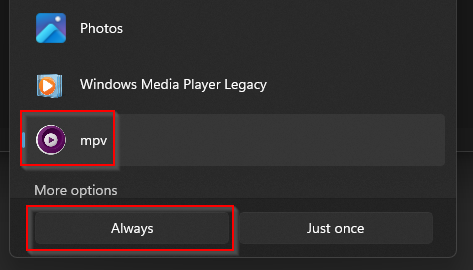
Install MPV from SourceForge repository | Windows Set it as default for video player
Bypass HDR over exposure in Windows
Issue: Over-exposure in screenshots and recordings with HDR in Windows 11 To overcome this you can use one of the two workarounds:
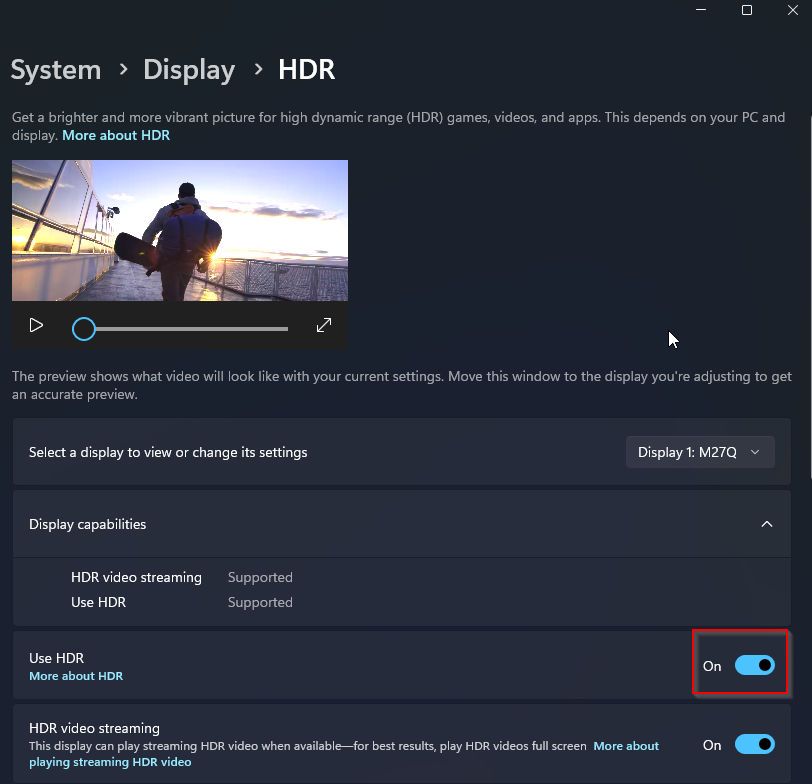
Disable HDR in Windows Settings
Disable HDR while watching a video
Add settings to MPV config
Use Vulkan rendering engine in MPV (Vulkan does not support HDR) We will be using a config file for MPV to switch rendering engine to Vulkan
-
Go to
%appdata%\mpv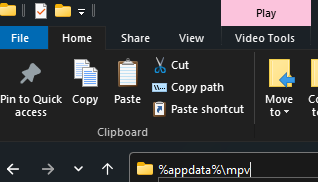
-
Create a
mpv.confwith the following content: This config file will use Vulkan API and MPV will automatically use English subtitle if it found one, disable/enable feature as you see fit
# Start in fullscreen mode by default.
# fs=yes

# Use a large seekable RAM cache even for local input.
# cache=yes

# Use extra large RAM cache (needs cache=yes to make it useful).
# demuxer-max-bytes=500M
# demuxer-max-back-bytes=100M

# Disable the behavior that the player will pause if the cache goes below a
# certain fill size.
# cache-pause=no

# Turn on English subtitle automatically
slang=eng,en

# Pervent HRD from over-saturation, (Vulkan dont have HDR)
vo=gpu
gpu-api=vulkan
More features
Preview:
-
This bar will always be shown until you remove it in setting. I find this useful when watching series, for long movie I disable this feature.

-
Peek is just preview into the past/future.
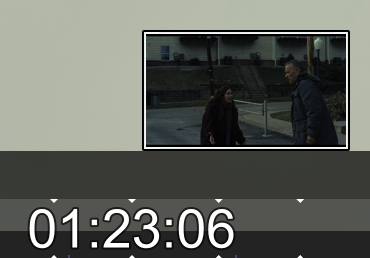
Common setup
-
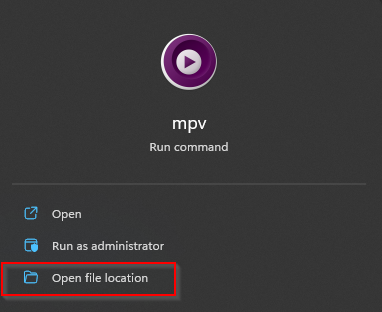
Find your MPV installation location. If your MPV is portable version, then go to your MPV folder. If you used an installer, you can search for MPV and open file location.
-
If
scriptsfolder does not exist, create one
Red progress bar
Paste progressbar.lua file into your scripts folder
progressbar.lua
Peek
Paste osc.lua and thumbfast.lua into your scripts folder
thumbfast.luaosc.lua