Access Host Dir
Unprivileged LXCs use user/group remapping. So user/group UID/GID 0-65535 inside the LXC will be UID/GID 100000-165535 on the host.
Option 1
If you want to access the bind-mount from inside the LXC with UID 109 and GID 117 that bind-mounted folder would need to be owned by UID 100109 and GID 100117 on the host. Something like chown -R 100117:100117 /mnt/share on PVE host. This means the folder on PVE host is only viewable/editable for user 100109, group 100117, and root of PVE host. Option 2 show you a method to map PVE host’s user/group to LXC container, make LXC “borrow” a user account for view/edit.
Option 2 - LXC idmap (its difficult but you should learn it, its the proper way)
This method have extra steps like editing:
/etc/pve/lxc/100.conf’slxc.idmap- editing
etc/suibuidand/etc/subguid
Summary
We want a user on PVE host to exist on LXC container, so LXC can view/edit folder on PVE host.
- This means we need to create or use an existing user (that is not service account) on PVE and map such user and group to LXC via
lxc.idmapdirective. - Updating PVE host’s
subuidandsubgid - In LXC, it will need an exact user and group matching PVE host user and group.
PVE
Everything discuss in this section is done on PVE host machine
Use existing or create new user + group
- I created a new user call
jellyfinon PVE host and use an existing group calledsmbshareon PVE host - Note down the uid and gid:
- UID:
id -u user_name - GID:
getent group group_name - For this example my uid =
1010, gid =1001
- UID:
Note
Only user and group created by user are in the 1000s range. apt install will create service user in 100s range which are not valid to pass through to LXC.
- This is crucial knowledge we might need at a later step.
Note 2
Its not necessary for your to use matching UID and GID. My UID 1005 and GID 1001, the uid/gid dont have to match
/etc/pve/lxc/10x.conf
You will need to append 6 lines of lxc.idmap to your LXC ID.conf file. If your LXC container is 100, then you will need to modify /etc/pve/lxc/100.conf
...
lxc.idmap = u 0 100000 1010 # 100000 is default, never change this, PVE's LXC starts at UID 100000; replace 1010 with your UID
lxc.idmap = g 0 100000 1001 # replace 1001 with your GID

lxc.idmap = u 1010 1010 1 # We mapping only 1 UID here
lxc.idmap = g 1001 1001 1 # We mapping only 1 GID here

lxc.idmap = u 1011 101011 64525 # We populate whatever is AFTER the UID you want to add to LXC, so normally it should be like this formula:
# lxc.idmap = u UID+1 100000+UID+1 65535-UID
lxc.idmap = g 1002 101002 64534 # Do the same for GID
Needless to say, you should definitely not pass down root GID and UID since that is equal to a privileged LXC container. I dont think you can pass it in the first place.
Python script
If you feel lazy, just use this tiny python script and just enter your PVE’s UID and GID
# Get user UID and GID
uid = int(input("User UID on Proxmox Host: "))
gid = int(input("User GID on Proxmox Host: "))

# Generate LXC configuration lxc.idmap
print(f"lxc.idmap: u 0 100000 {uid}\n" \
    f"lxc.idmap: g 0 100000 {gid}\n" \
    f"lxc.idmap: u {uid} {uid} 1\n" \
    f"lxc.idmap: g {gid} {gid} 1\n" \
    f"lxc.idmap: u {uid+1} {100000+uid+1} {65535-uid}\n" \
    f"lxc.idmap: g {gid+1} {100000+gid+1} {65535-gid}\n")
Modify PVE /etc/subuid and /etc/subgid
Since LXC creates the CT using root, we have to allow root to use these uids in the container.
PVE Host: /etc/subuid
root:UID:1
# For me it will be
root:1010:1 #UID is 1010, taking 1 slot
PVE Host: /etc/subgid
root:GID:1
# For me it will be
root:1001:1 #GID is 1001, taking 1 slot
chown -R
Lastly, the mounting point directory ownership needs to match with LXC idmap’s UID and GID.
This will work:
chown -R jellyfin:smbshare /mnt/Video
This will also work
chown -R 1010:1001 /mnt/Video
This will NOT work: (user is not matching with LXC UID) and you will get permission denied in LXC container
chown -R root:smbshare /mnt/Video
LXC
At this point you can start up your LXC container and check console for error message if any.
- SSH into container and see if your mounting point is accessible. All instructions below are done on LXC container, NOT PVE HOST
Troubleshooting
- If the permission is
nobody:nobody, you did something wrong on the PVEidmaporsubuid/subgidside - If you see this message, you are attempting to mount 100s service account. Which is not allowed
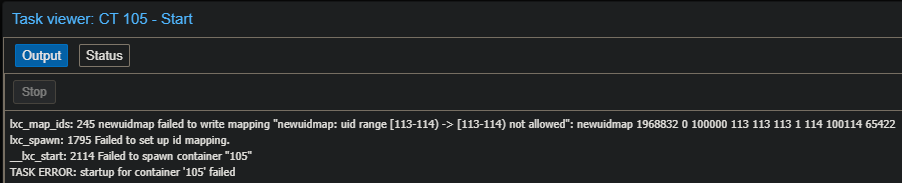 Note
Note - If you see fail to map, check your
/etc/subuidand/etc/subgidto see if you have correct UID and GID
LXC match PVE user
I ran into an issue where LXC’s root account can view/edit the mounted directory but my LXC Jellyfin service (running with LXC account jellyfin) cannot see the library I mounted /Video. This is due to UID and GID mismatch.
- LXC
jellyfinUID is103and group is120. Meanwhile our PVE’s UID is1010and GID is1001. We will need to migrate LXC’sjellyfinaccountuidandgidto match with PVE.
Note 3
It is never a requirement for user to have their own matching name’s group. Creating user jellyfin does not mean you need to create a group call jellyfin. User jellyfin can just be a member of smbshare.
Create group with proper GID first
Since I have smbshare group in PVE and that group is not defined in LXC, I will create this group groupadd -g 1001 smbshare. Note the GID 1001 should match with PVE
Create/update UID and updating folder permission
Creating UID
You can create a new user with useradd jellyfin -u 1010 -g 1001 where 1010 is UID and 1001 is GID. No home directory is required
Updating existing UID
I already have a jellyfin user with UID 103 (it is created when setting up Jellyfin with script), I need to migrate it to UID 1010 with by editing /etc/passwd and /etc/group
/etc/passwd
Look for jellyfin and put 1010:1001 UID (jellyfin) : GID(smbshare)
- This defines user
jellyfin’s UID is1010, and primary group issmbshare 1001 - Again, Note 3
/etc/group
Look for smbshare and put it like smbshare:x:1001:jellyfin
- This defines
smbsharegroup have userjellyfinin the group
Updating old file/folder permission
You need to update all old jellyfin owned file/folder with old UID 103 to the new UID 1010 with find / -uid 103 -exec chown -h 1010 {} + It will return multiple permission denied for /lxc directory, and that is ok.
Checking mounting point again
Now when you do ls -la, you should see LXC folder ownership should match with PVE host ownership.

Updating systemctl service
Jellyfin use user jellyfin for running its service, thus we need to make a small change to the service’s running group from jellyfin to smbshare.
In /lib/systemd/system/jellyfin.service, change the group from jellyfin to smbshare. Then refresh systemd with systemctl daemon-reload and restart service.